> ## Documentation Index
> Fetch the complete documentation index at: https://docs.honeyhive.ai/llms.txt
> Use this file to discover all available pages before exploring further.
# Setup and Authentication
> Authenticating your requests to the SDK
Authentication for HoneyHive's SDKs is done by passing a bearer auth token that's generated when you first join the platform.
### Get your API Key
**Expected Time**: \< 1 minute
**Steps**:
* Click on the organization name in the top right corner of the screen
* Click `Copy API Key` from the dropdown
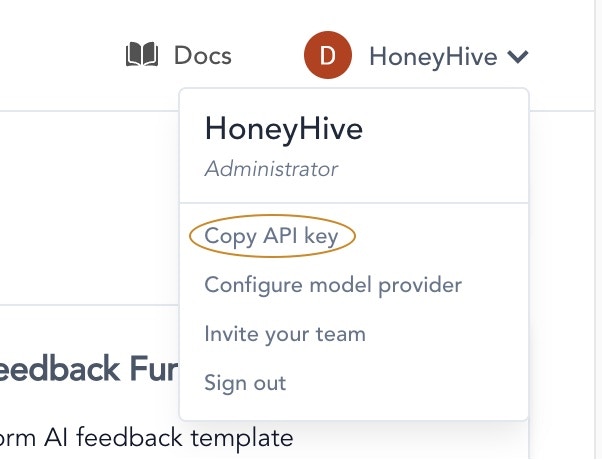 Now your HoneyHive API key is copied to clipboard, feel free to use it to authenticate with our APIs & SDKs.
### Installation
To use HoneyHive, you will need to install the HoneyHive package. We currently support SDKs in Python and Typescript.
```javascript Typescript theme={null}
npm install honeyhive
```
```python Python theme={null}
pip install honeyhive
```
### Authentication
You need to initialize the SDKs as follows:
```typescript Typescript theme={null}
interface HoneyHiveConfig {
bearerAuth: string;
serverURL?: string; // Optional for cloud, required for self-hosted/dedicated deployments
}
import { HoneyHive } from "honeyhive";
const sdk = new HoneyHive({
bearerAuth: "",
serverURL: "HONEYHIVE_SERVER_URL"
} as HoneyHiveConfig);
```
```python Python theme={null}
import honeyhive
s = honeyhive.HoneyHive(
bearer_auth="",
server_url="HONEYHIVE_SERVER_URL" # Optional / Required for self-hosted or dedicated deployments
)
```
### Get your HoneyHive Project ID
Some SDK functions optionally require a project id instead of the project name. Here are the steps to get your project id:
**Expected Time**: \< 1 minute
**Steps**:
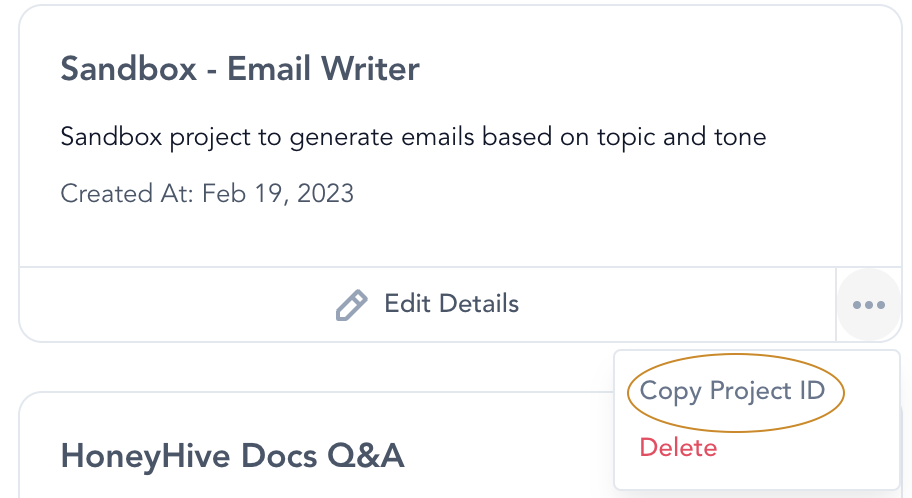
* Go to the [Projects page](https://app.us.honeyhive.ai/)
* Click on the three dots on the bottom right of the project card you are interested in
* Hit `Copy Project ID` & paste it where required
Now your HoneyHive API key is copied to clipboard, feel free to use it to authenticate with our APIs & SDKs.
### Installation
To use HoneyHive, you will need to install the HoneyHive package. We currently support SDKs in Python and Typescript.
```javascript Typescript theme={null}
npm install honeyhive
```
```python Python theme={null}
pip install honeyhive
```
### Authentication
You need to initialize the SDKs as follows:
```typescript Typescript theme={null}
interface HoneyHiveConfig {
bearerAuth: string;
serverURL?: string; // Optional for cloud, required for self-hosted/dedicated deployments
}
import { HoneyHive } from "honeyhive";
const sdk = new HoneyHive({
bearerAuth: "",
serverURL: "HONEYHIVE_SERVER_URL"
} as HoneyHiveConfig);
```
```python Python theme={null}
import honeyhive
s = honeyhive.HoneyHive(
bearer_auth="",
server_url="HONEYHIVE_SERVER_URL" # Optional / Required for self-hosted or dedicated deployments
)
```
### Get your HoneyHive Project ID
Some SDK functions optionally require a project id instead of the project name. Here are the steps to get your project id:
**Expected Time**: \< 1 minute
**Steps**:
* Go to the [Projects page](https://app.us.honeyhive.ai/)
* Click on the three dots on the bottom right of the project card you are interested in
* Hit `Copy Project ID` & paste it where required