> ## Documentation Index
> Fetch the complete documentation index at: https://docs.honeyhive.ai/llms.txt
> Use this file to discover all available pages before exploring further.
# SaaS Cloud
> Getting started on HoneyHive's multi-tenant SaaS cloud.
HoneyHive's SaaS Cloud is our self-serve product that runs on a multi-tenant SaaS cloud managed by us.
We are SOC-2, GDPR, ISO 27001, and HIPAA compliant. We follow industry standards for security and privacy for tenant isolation.
Please refer to our [trust center](https://app.drata.com/trust/9cc7ede3-0c38-11ee-865f-029d78a187d9) for latest compliance certifications and updates.
### Getting Started
Start by logging into HoneyHive.
**Expected time**: 5 minutes
**Steps**
[Application link here](https://app.us.honeyhive.ai/).
If you use a different identity provider, you can create an account manually with your email & password.
You will be prompted to share some basic information about your organization and your role.
Congratulations, your account is now set up and you can start using HoneyHive!
### Create a project
Everything in HoneyHive is organized by projects. A project is a workspace to develop, test & monitor a specific AI application.
**Expected time**: 1-2 mins
**Steps**
1. Navigate to [the projects page](https://app.us.honeyhive.ai/)
2. Follow the steps as shown below
Congratulations, you have created your first project in HoneyHive.
You can now start logging data, running evaluations, and much more.
### Get your API Key
Your API key allows you to authenticate the SDK and log data in HoneyHive.
**Expected Time**: \< 1 minute
**Steps**:
* Click on the organization name in the top right corner of the screen
* Click `Copy API Key` from the dropdown
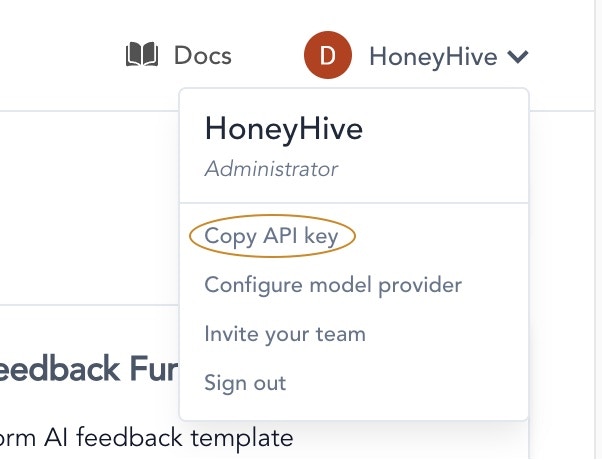 Now your HoneyHive API key is copied to clipboard, feel free to use it to authenticate with our APIs & SDKs.
### Install the HoneyHive SDK
To use HoneyHive, you will need to install the HoneyHive package. We currently support SDKs in Python and Typescript.
```python Python theme={null}
pip install honeyhive
```
```javascript Typescript theme={null}
npm install honeyhive
```
### Next steps
How to invite your teammates to HoneyHive.
How to log your data in HoneyHive.
Now your HoneyHive API key is copied to clipboard, feel free to use it to authenticate with our APIs & SDKs.
### Install the HoneyHive SDK
To use HoneyHive, you will need to install the HoneyHive package. We currently support SDKs in Python and Typescript.
```python Python theme={null}
pip install honeyhive
```
```javascript Typescript theme={null}
npm install honeyhive
```
### Next steps
How to invite your teammates to HoneyHive.
How to log your data in HoneyHive.