> ## Documentation Index
> Fetch the complete documentation index at: https://docs.honeyhive.ai/llms.txt
> Use this file to discover all available pages before exploring further.
# Observability Tutorial - RAG
> Instrumenting a RAG application with HoneyHive
[Python example repo](https://github.com/honeyhiveai/cookbook/tree/main/observability-tutorial-python)
[TypeScript example repo](https://github.com/honeyhiveai/cookbook/tree/main/observability-tutorial-ts)
Observability is crucial for LLM applications due to their non-deterministic nature. HoneyHive provides LLM-native observability, allowing you to gain meaningful insights into your application throughout all stages of development - from prototyping to production.
In this tutorial, we'll walk through the process of adding observability to a simple RAG (Retrieval-Augmented Generation) application using HoneyHive.
Feel free to copy-paste this tutorial as a prompt in Cursor or GitHub Copilot for auto-instrumenting your code.
## Sample Application
Before we add observability, let's look at a basic RAG application without any instrumentation.
This application does the following:
1. Retrieves relevant documents from a Pinecone vector database based on a query’s embedding.
2. Uses the retrieved documents as context to generate a response using OpenAI's GPT model.
3. Returns the generated response.
```python Python theme={null}
import os
from openai import OpenAI
from pinecone import Pinecone
# Set up environment variables
os.environ["OPENAI_API_KEY"] = "your-openai-api-key"
os.environ["PINECONE_API_KEY"] = "your-pinecone-api-key"
# Initialize clients
openai_client = OpenAI()
pc = Pinecone()
index = pc.Index("your-index-name")
def rag_pipeline(query):
# Embed query
embedding_res = openai_client.embeddings.create(
model="text-embedding-ada-002",
input=query
)
query_vector = embedding_res.data[0].embedding
# Get relevant documents
res = index.query(vector=query_vector, top_k=3, include_metadata=True)
print(res)
docs = [item['metadata']['_node_content'] for item in res['matches']]
# Generate response
context = "\n".join(docs)
prompt = f"Context: {context}\n\nQuestion: {query}\n\nAnswer:"
response = openai_client.chat.completions.create(
model="gpt-4o",
messages=[
{"role": "system", "content": "You are a helpful assistant."},
{"role": "user", "content": prompt}
]
)
final_response = response.choices[0].message.content
# Print results
print(f"Query: {query}")
print(f"Response: {final_response}")
return final_response
if __name__ == "__main__":
rag_pipeline("What does this document talk about?")
```
```TypeScript TypeScript theme={null}
import * as dotenv from 'dotenv';
import { OpenAI } from 'openai';
import { Pinecone } from '@pinecone-database/pinecone';
dotenv.config();
// Initialize clients
const openai = new OpenAI({ apiKey: process.env.OPENAI_API_KEY });
const pc = new Pinecone({ apiKey: process.env.PINECONE_API_KEY });
const index = pc.index("chunk-size-512");
async function ragPipeline(query) {
// Embed query
const embeddingResponse = await openai.embeddings.create({
model: "text-embedding-ada-002",
input: query
});
const queryVector = embeddingResponse.data[0].embedding;
// Get relevant documents
const queryResult = await index.query({
vector: queryVector,
topK: 3,
includeMetadata: true
});
const relevantDocs = queryResult.matches.map(item => item.metadata!._node_content as string);
// Generate response
const context = relevantDocs.join("\n");
const prompt = `Context: ${context}\n\nQuestion: ${query}\n\nAnswer:`;
const completion = await openai.chat.completions.create({
model: "gpt-4",
messages: [
{ role: "system", content: "You are a helpful assistant." },
{ role: "user", content: prompt }
]
});
const response = completion.choices[0].message.content || "";
// Log results
console.log(`Query: ${query}`);
console.log(`Response: ${response}`);
}
ragPipeline("What does the document talk about?")
```
While this application works, it lacks observability. We can't easily track performance, debug issues, or gather insights about its behavior. Let's add HoneyHive observability to address these limitations.
## Tutorial overview
The golden path for adding observability with HoneyHive happens in 2 phases.
**Phase 1: Capture the data**
* Auto-capture LLM and vector DB calls
* Group the calls into the logical steps in your application
* Trace any other missing steps that might be relevant
**Phase 2: Enrich the data**
* Track configuration and metadata on a step level
* Track user properties, feedback, and configuration on an application level
## Phase 1 - Capture the data
### Prerequisites
For the following tutorial, we are assuming that you have
* Already setup a HoneyHive account
* Copied your HoneyHive API key
The tutorial should be easy to follow along even if you aren't using OpenAI and Pinecone.
### Setting Up Your Environment
First, install the HoneyHive SDK:
```bash Python theme={null}
pip install honeyhive
```
```bash TypeScript theme={null}
npm install honeyhive
```
### 1. Auto-capture LLM and Vector DB Calls
At the beginning of your application, initialize the HoneyHive tracer:
```python Python theme={null}
# below your other imports
# add an import for the auto-tracer
from honeyhive import HoneyHiveTracer
# Initialize the tracer
HoneyHiveTracer.init(
api_key="your-honeyhive-api-key",
project="your-honeyhive-project-name",
source="development",
session_name="RAG Session"
)
# The rest of the code remains the same as the sample application
```
```TypeScript TypeScript theme={null}
// below your other imports
// add an import for the auto-tracer
import { HoneyHiveTracer } from "honeyhive";
// initialize the tracer
const tracer: HoneyHiveTracer = await HoneyHiveTracer.init({
apiKey: process.env.HH_API_KEY || '',
project: process.env.HH_PROJECT || '',
source: "dev", // e.g. "prod", "dev", etc.
sessionName: "RAG Session",
});
// logic in the middle remains the same
// wrap the execution entry point with await tracer.trace
await tracer.trace(
() => ragPipeline("What does this document talk about?")
)
```
HoneyHive automatically instruments calls to popular LLM providers and vector databases. For example, if you're using OpenAI and Pinecone, your trace in the platform would look as follows.
In case you are unable to see the auto-captured calls, please refer to [our troubleshooting docs](/introduction/troubleshooting). In any case, you can add custom spans as described in the next step to capture those calls.
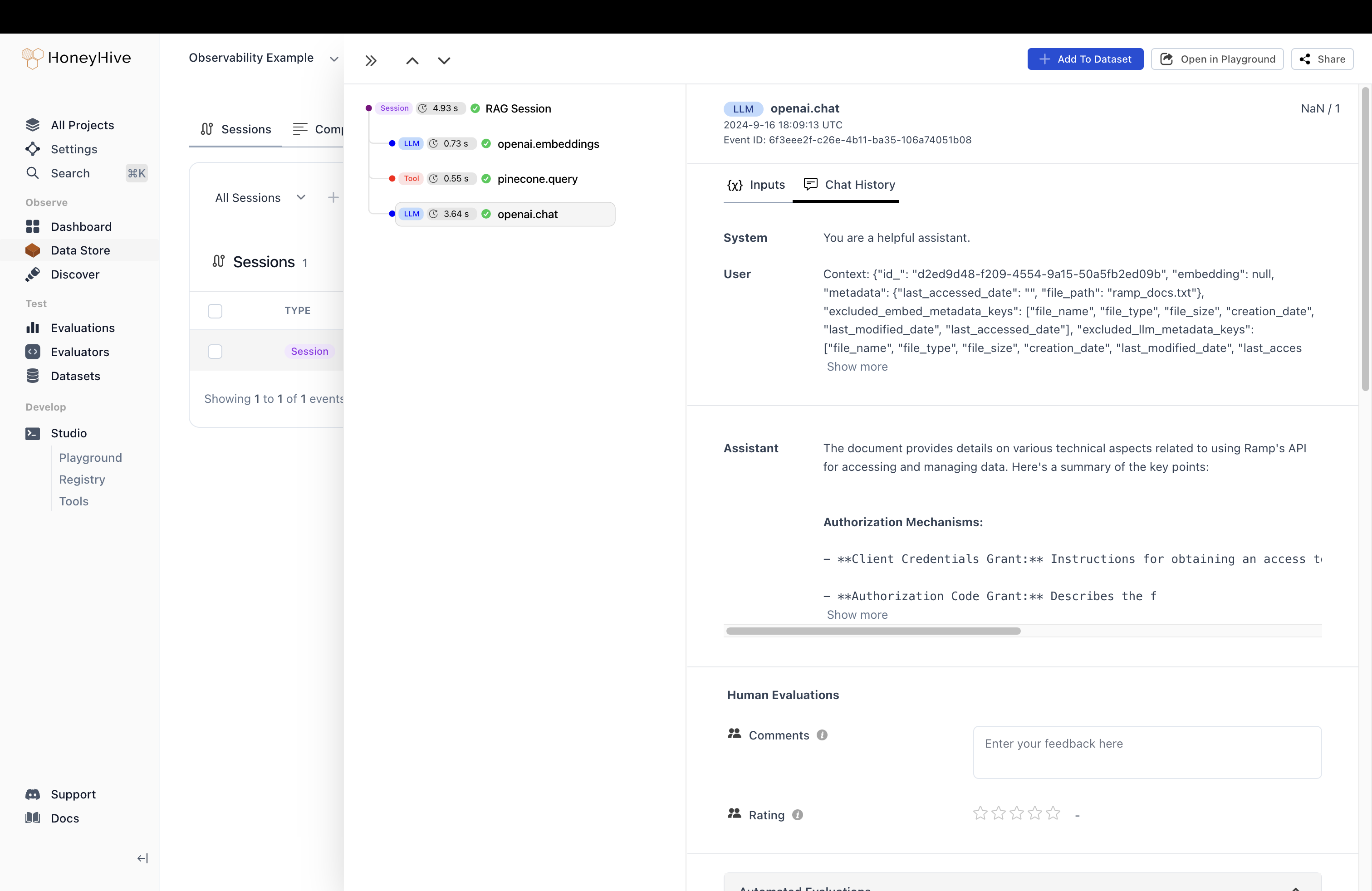 This is great! Now we know exactly what our LLM and vector DB providers are receiving and responding with. This will help us in debugging API errors and understanding latencies.
However, such a trace structure is not easy to flip through. It might even be missing key steps.
For example, it’s hard to quickly find the user query and context chunks.
1. The user query is all the way at the end of the LLM messages.
2. The context chunks are all mixed together so we can’t tease those apart.
Next, we’ll introduce a few basic abstractions to capture these key variables and other missing steps in our application more cleanly.
### 2. Create a custom span around your main application
The [`@trace` decorator in Python](/tracing/custom-spans) and [`traceFunction` in TypeScript](/tracing/custom-spans) help us add custom spans for important functions in the application. It captures all function inputs and outputs as well as durations and other relevant properties.
We’ll start by placing the first decorator on the main RAG function.
```python Python theme={null}
# in the imports, add an import for `trace` as follows
from honeyhive import trace
# add a decorator on your main application function
@trace
def rag_pipeline(query):
# ... no changes inside
# logic elsewhere remains the same
```
```TypeScript TypeScript theme={null}
// no new imports necessary
// create a new function with the same name as original
const ragPipeline = tracer.traceFunction()(
// pass your original function to tracer.traceFunction directly
async function ragPipeline(query: string): Promise {
// ... no changes inside
}
)
```
By adding this high level span, we get a more readable trace structure that looks like:
This is great! Now we know exactly what our LLM and vector DB providers are receiving and responding with. This will help us in debugging API errors and understanding latencies.
However, such a trace structure is not easy to flip through. It might even be missing key steps.
For example, it’s hard to quickly find the user query and context chunks.
1. The user query is all the way at the end of the LLM messages.
2. The context chunks are all mixed together so we can’t tease those apart.
Next, we’ll introduce a few basic abstractions to capture these key variables and other missing steps in our application more cleanly.
### 2. Create a custom span around your main application
The [`@trace` decorator in Python](/tracing/custom-spans) and [`traceFunction` in TypeScript](/tracing/custom-spans) help us add custom spans for important functions in the application. It captures all function inputs and outputs as well as durations and other relevant properties.
We’ll start by placing the first decorator on the main RAG function.
```python Python theme={null}
# in the imports, add an import for `trace` as follows
from honeyhive import trace
# add a decorator on your main application function
@trace
def rag_pipeline(query):
# ... no changes inside
# logic elsewhere remains the same
```
```TypeScript TypeScript theme={null}
// no new imports necessary
// create a new function with the same name as original
const ragPipeline = tracer.traceFunction()(
// pass your original function to tracer.traceFunction directly
async function ragPipeline(query: string): Promise {
// ... no changes inside
}
)
```
By adding this high level span, we get a more readable trace structure that looks like:
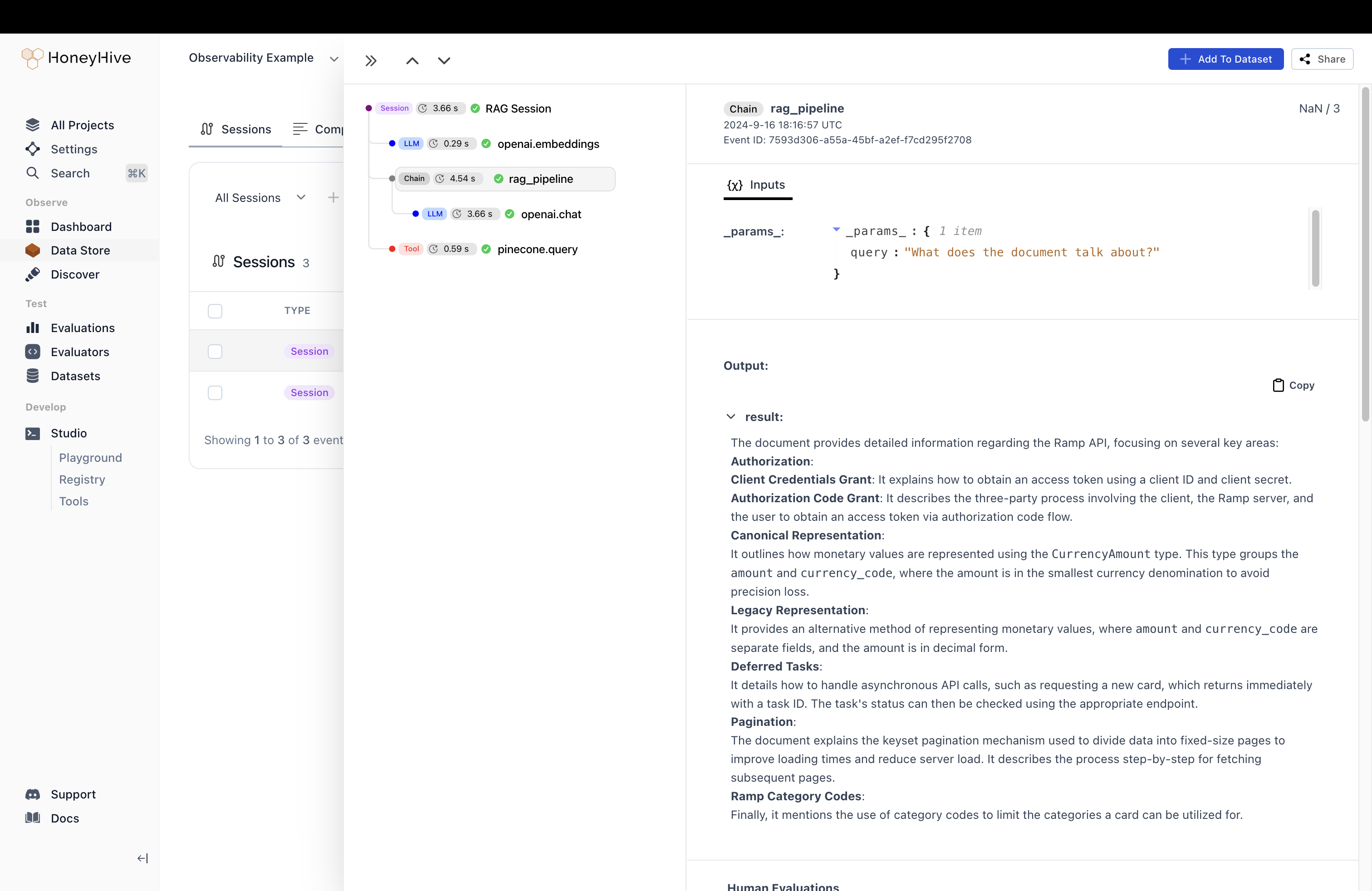 The `rag_pipeline`/`ragPipeline` span is a lot easier to read and interpret.
We can see that the user query was `What does the document talk about?` and the final output is the (possibly?) correct description provided by the model.
This high-level view will help us catch any glaring semantic issues.
However, this is still not sufficient.
We still need access to some specific fields from the vector DB and LLM step that can break down how we arrived at this output.
Luckily, our decorator approach can easily scale to include any step as we please.
### 3. Create a custom span around key intermediate steps
First, let's split our large RAG function into different sub-functions.
Any intermediate step whose inputs and outputs we want to track are good candidates for splitting out into their own functions.
You might have to sometimes pass a variable as an argument even if you don't end up using it in the function, so that it can be tracked as inputs on the span in the platform.
In this case, we can separate a retriever and generator step to trace separately.
```python Python theme={null}
# logic above remains the same
def embed_query(query):
res = openai_client.embeddings.create(
model="text-embedding-ada-002",
input=query
)
query_vector = res.data[0].embedding
return query_vector
def get_relevant_documents(query):
vector_query = embed_query(query)
results = index.query(vector=vector_query, top_k=3)
return [result.metadata["text"] for result in results.matches]
def generate_response(context, query):
prompt = f"Context: {context}\n\nQuestion: {query}\n\nAnswer:"
response = openai_client.chat.completions.create(
model="gpt-3.5-turbo",
messages=[
{"role": "system", "content": "You are a helpful assistant."},
{"role": "user", "content": prompt}
]
)
return response.choices[0].message.content
@trace
def rag_pipeline():
query = "What does this document talk about?"
docs = get_relevant_documents(query)
context = "\n".join(docs)
response = generate_response(context, query)
print(f"Query: {query}")
print(f"Response: {response}")
# logic below remains the same
```
```TypeScript TypeScript theme={null}
// logic above remains the same
const embedQuery = async (query: string) => {
const embeddingResponse = await openai.embeddings.create({
model: "text-embedding-ada-002",
input: query
});
return embeddingResponse.data[0].embedding;
};
const getRelevantDocuments = async (queryVector: number[]): Promise => {
const queryResult = await index.query({
vector: queryVector,
topK: 3,
includeMetadata: true
});
return queryResult.matches.map(item => item.metadata!._node_content as string);
};
const generateResponse = async (context: string, query: string): Promise => {
const prompt = `Context: ${context}\n\nQuestion: ${query}\n\nAnswer:`;
const completion = await openai.chat.completions.create({
model: "gpt-4",
messages: [
{ role: "system", content: "You are a helpful assistant." },
{ role: "user", content: prompt }
]
});
return completion.choices[0].message.content || "";
};
const ragPipeline = tracer.traceFunction()(
async function ragPipeline(query: string): Promise {
const queryVector = await embedQuery(query);
const relevantDocs = await getRelevantDocuments(queryVector);
const context = relevantDocs.join("\n");
const response = await generateResponse(context, query);
// Log results
console.log(`Query: ${query}`);
console.log(`Response: ${response}`);
return response;
}
)
// logic below remains the same
```
Now, let’s add the function decorator on the document retrieval and response generation steps.
The decorator will automatically pick up the function name, so we can easily discern which steps are calling our providers. It’ll also track latencies and, as we’ll see later, additional details like configuration and metadata.
```python Python theme={null}
# logic above remains the same
# add a decorator on the key intermediate functions
@trace
def get_relevant_documents(query):
results = index.query(vector=query, top_k=3)
return [result.metadata["text"] for result in results.matches]
# add a decorator on the key intermediate functions
@trace
def generate_response(context, query):
prompt = f"Context: {context}\n\nQuestion: {query}\n\nAnswer:"
response = openai_client.chat.completions.create(
model="gpt-3.5-turbo",
messages=[
{"role": "system", "content": "You are a helpful assistant."},
{"role": "user", "content": prompt}
]
)
return response.choices[0].message.content
# logic below remains the same
```
```TypeScript TypeScript theme={null}
// logic above remains the same
// wrap the intermediate step with traceFunction
const getRelevantDocuments = tracer.traceFunction()(
async function getRelevantDocuments(queryVector: number[]): Promise {
const queryResult = await index.query({
vector: queryVector,
topK: 3,
includeMetadata: true
});
return queryResult.matches.map(item => item.metadata!._node_content as string);
}
);
// wrap the intermediate step with traceFunction
const generateResponse = tracer.traceFunction()(
async function generateResponse(context: string, query: string): Promise {
const prompt = `Context: ${context}\n\nQuestion: ${query}\n\nAnswer:`;
const completion = await openai.chat.completions.create({
model: "gpt-4",
messages: [
{ role: "system", content: "You are a helpful assistant." },
{ role: "user", content: prompt }
]
});
return completion.choices[0].message.content || "";
}
);
// logic below remains the same
```
By adding the lower level spans, we get a functional trace structure that looks like:
The `rag_pipeline`/`ragPipeline` span is a lot easier to read and interpret.
We can see that the user query was `What does the document talk about?` and the final output is the (possibly?) correct description provided by the model.
This high-level view will help us catch any glaring semantic issues.
However, this is still not sufficient.
We still need access to some specific fields from the vector DB and LLM step that can break down how we arrived at this output.
Luckily, our decorator approach can easily scale to include any step as we please.
### 3. Create a custom span around key intermediate steps
First, let's split our large RAG function into different sub-functions.
Any intermediate step whose inputs and outputs we want to track are good candidates for splitting out into their own functions.
You might have to sometimes pass a variable as an argument even if you don't end up using it in the function, so that it can be tracked as inputs on the span in the platform.
In this case, we can separate a retriever and generator step to trace separately.
```python Python theme={null}
# logic above remains the same
def embed_query(query):
res = openai_client.embeddings.create(
model="text-embedding-ada-002",
input=query
)
query_vector = res.data[0].embedding
return query_vector
def get_relevant_documents(query):
vector_query = embed_query(query)
results = index.query(vector=vector_query, top_k=3)
return [result.metadata["text"] for result in results.matches]
def generate_response(context, query):
prompt = f"Context: {context}\n\nQuestion: {query}\n\nAnswer:"
response = openai_client.chat.completions.create(
model="gpt-3.5-turbo",
messages=[
{"role": "system", "content": "You are a helpful assistant."},
{"role": "user", "content": prompt}
]
)
return response.choices[0].message.content
@trace
def rag_pipeline():
query = "What does this document talk about?"
docs = get_relevant_documents(query)
context = "\n".join(docs)
response = generate_response(context, query)
print(f"Query: {query}")
print(f"Response: {response}")
# logic below remains the same
```
```TypeScript TypeScript theme={null}
// logic above remains the same
const embedQuery = async (query: string) => {
const embeddingResponse = await openai.embeddings.create({
model: "text-embedding-ada-002",
input: query
});
return embeddingResponse.data[0].embedding;
};
const getRelevantDocuments = async (queryVector: number[]): Promise => {
const queryResult = await index.query({
vector: queryVector,
topK: 3,
includeMetadata: true
});
return queryResult.matches.map(item => item.metadata!._node_content as string);
};
const generateResponse = async (context: string, query: string): Promise => {
const prompt = `Context: ${context}\n\nQuestion: ${query}\n\nAnswer:`;
const completion = await openai.chat.completions.create({
model: "gpt-4",
messages: [
{ role: "system", content: "You are a helpful assistant." },
{ role: "user", content: prompt }
]
});
return completion.choices[0].message.content || "";
};
const ragPipeline = tracer.traceFunction()(
async function ragPipeline(query: string): Promise {
const queryVector = await embedQuery(query);
const relevantDocs = await getRelevantDocuments(queryVector);
const context = relevantDocs.join("\n");
const response = await generateResponse(context, query);
// Log results
console.log(`Query: ${query}`);
console.log(`Response: ${response}`);
return response;
}
)
// logic below remains the same
```
Now, let’s add the function decorator on the document retrieval and response generation steps.
The decorator will automatically pick up the function name, so we can easily discern which steps are calling our providers. It’ll also track latencies and, as we’ll see later, additional details like configuration and metadata.
```python Python theme={null}
# logic above remains the same
# add a decorator on the key intermediate functions
@trace
def get_relevant_documents(query):
results = index.query(vector=query, top_k=3)
return [result.metadata["text"] for result in results.matches]
# add a decorator on the key intermediate functions
@trace
def generate_response(context, query):
prompt = f"Context: {context}\n\nQuestion: {query}\n\nAnswer:"
response = openai_client.chat.completions.create(
model="gpt-3.5-turbo",
messages=[
{"role": "system", "content": "You are a helpful assistant."},
{"role": "user", "content": prompt}
]
)
return response.choices[0].message.content
# logic below remains the same
```
```TypeScript TypeScript theme={null}
// logic above remains the same
// wrap the intermediate step with traceFunction
const getRelevantDocuments = tracer.traceFunction()(
async function getRelevantDocuments(queryVector: number[]): Promise {
const queryResult = await index.query({
vector: queryVector,
topK: 3,
includeMetadata: true
});
return queryResult.matches.map(item => item.metadata!._node_content as string);
}
);
// wrap the intermediate step with traceFunction
const generateResponse = tracer.traceFunction()(
async function generateResponse(context: string, query: string): Promise {
const prompt = `Context: ${context}\n\nQuestion: ${query}\n\nAnswer:`;
const completion = await openai.chat.completions.create({
model: "gpt-4",
messages: [
{ role: "system", content: "You are a helpful assistant." },
{ role: "user", content: prompt }
]
});
return completion.choices[0].message.content || "";
}
);
// logic below remains the same
```
By adding the lower level spans, we get a functional trace structure that looks like:
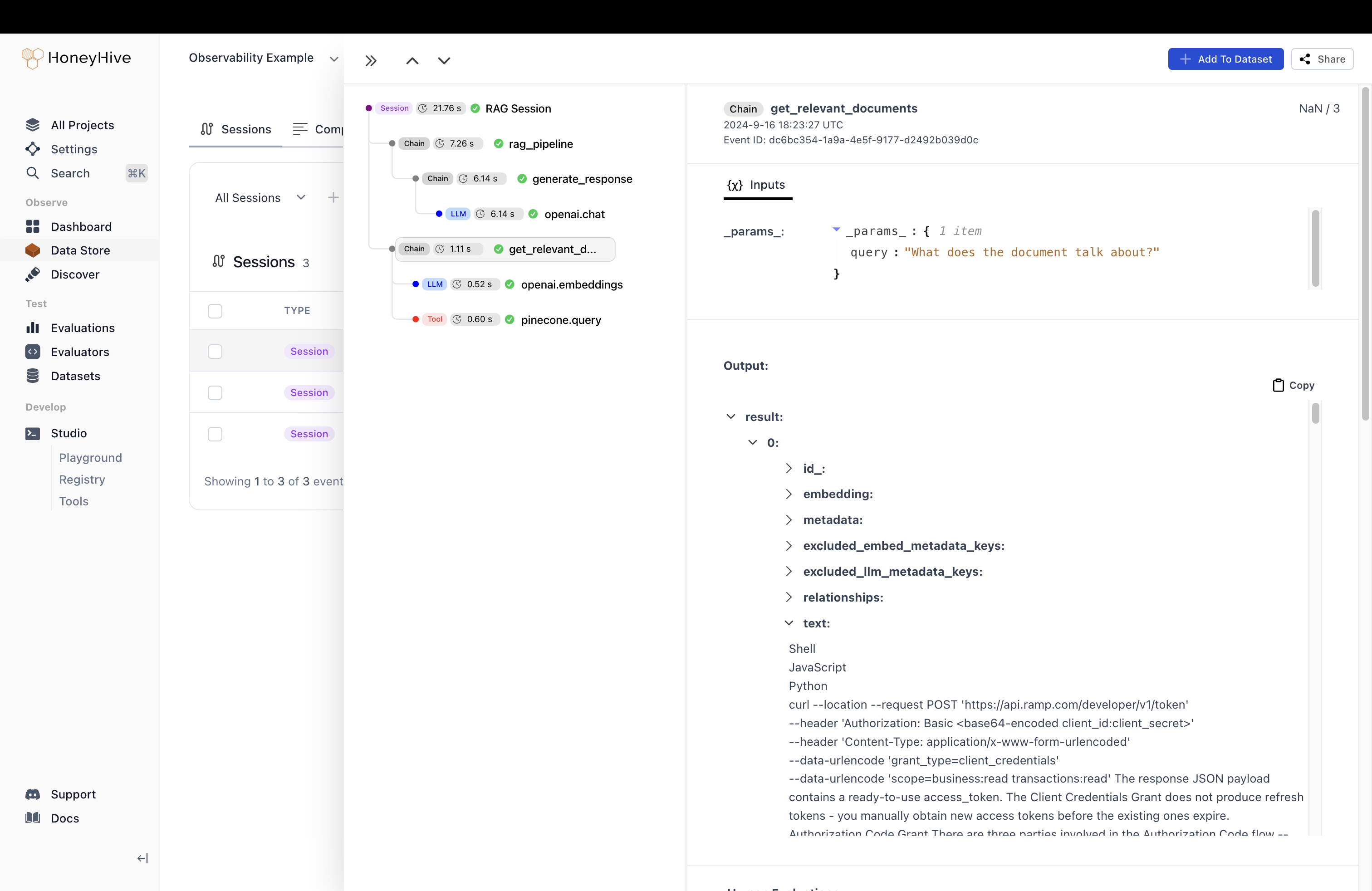 Wonderful!
Using the decorator, we can easily click through the documents fetched by `get_relevant_documents` and understand whether the LLM’s answer is sensible.
Our UI makes it easy to navigate extremely nested JSONs with large text to make debugging smoother.
Just by investigating these spans we can quickly debug whether our retriever or generation step is causing our overall application to fail.
## Phase 2 - Enrich the data
For the next phase, let’s add in any other external context that’s available to us to the trace.
This will help us later when charting the data and understanding aggregate trends in usage and feedback.
### 4. Enrich the Custom Spans with Configuration and Metadata
The `trace` decorator accepts metadata and configuration to provide more context to the traces:
```python Python theme={null}
# logic above remains the above
# pass relevant config and metadata to the decorator here
@trace(
config={
"embedding_model": "text-embedding-ada-002",
"top_k": 3
}
)
def get_relevant_documents(query):
results = index.query(vector=query, top_k=3)
return [result.metadata["text"] for result in results.matches]
# pass relevant config and metadata to the decorator here
@trace(
config={
"model": "gpt-4o",
"prompt": "You are a helpful assistant"
},
metadata={
"version": 1
}
)
def generate_response(context, query):
prompt = f"Context: {context}\n\nQuestion: {query}\n\nAnswer:"
response = openai_client.chat.completions.create(
model="gpt-4o",
messages=[
{"role": "system", "content": "You are a helpful assistant."},
{"role": "user", "content": prompt}
]
)
return response.choices[0].message.content
# logic below remains the same
```
```TypeScript TypeScript theme={null}
// logic above remains the same
const getRelevantDocumentsConfig = {
"embedding_model": "text-embedding-ada-002",
"top_k": 3
};
const getRelevantDocuments = tracer.traceFunction({
metadata: getRelevantDocumentsConfig
})(
async function getRelevantDocuments(queryVector: number[]): Promise {
const queryResult = await index.query({
vector: queryVector,
topK: 3,
includeMetadata: true
});
return queryResult.matches.map(item => item.metadata!._node_content as string);
}
);
interface GenerateResponseConfig {
model: string;
prompt: string;
}
interface GenerateResponseMetadata {
version: number;
}
const generateResponseConfig: GenerateResponseConfig = {
"model": "gpt-4o",
"prompt": "You are a helpful assistant"
};
const generateResponseMetadata: GenerateResponseMetadata = {
"version": 1
};
const generateResponse = tracer.traceFunction({
metadata: {
...generateResponseConfig,
...generateResponseMetadata
}
})(
async function generateResponse(context: string, query: string): Promise {
const prompt = `Context: ${context}\n\nQuestion: ${query}\n\nAnswer:`;
const completion = await openai.chat.completions.create({
model: "gpt-4",
messages: [
{ role: "system", content: "You are a helpful assistant." },
{ role: "user", content: prompt }
]
});
return completion.choices[0].message.content || "";
}
);
// logic below remains the same
```
### 5. Enrich the trace with Feedback and Metadata
We can enrich the session by calling it from anywhere else in the code. For example, we'll call our RAG pipeline function from another `main` function.
Using the `enrich_session`/`enrichSession` helper functions on our base tracer class, we will enrich the full session with the relevant external context as well.
```python Python theme={null}
# logic above remains the same
def main():
query = "What is the capital of France?"
response = rag_pipeline(query)
print(f"Query: {query}")
print(f"Response: {response}")
# Setting metadata on the session
# Simulate getting user feedback
user_rating = 4
HoneyHiveTracer.enrich_session(
feedback={
"rating": user_rating,
"comment": "The response was accurate and helpful."
},
metadata={
"experiment-id": 123
}
)
if __name__ == "__main__":
main()
```
```TypeScript TypeScript theme={null}
// logic above remains the same
async function main(): Promise {
let query = "What does the document talk about?";
let response = await ragPipeline(query);
console.log("Query", query);
console.log("Response", response);
let userRating = 4;
await tracer.enrichSession({
feedback: {
"rating": userRating,
"comment": "The response was accurate and helpful."
},
metadata: {
"experiment-id": 1234
}
});
}
await tracer.trace(() => main())
```
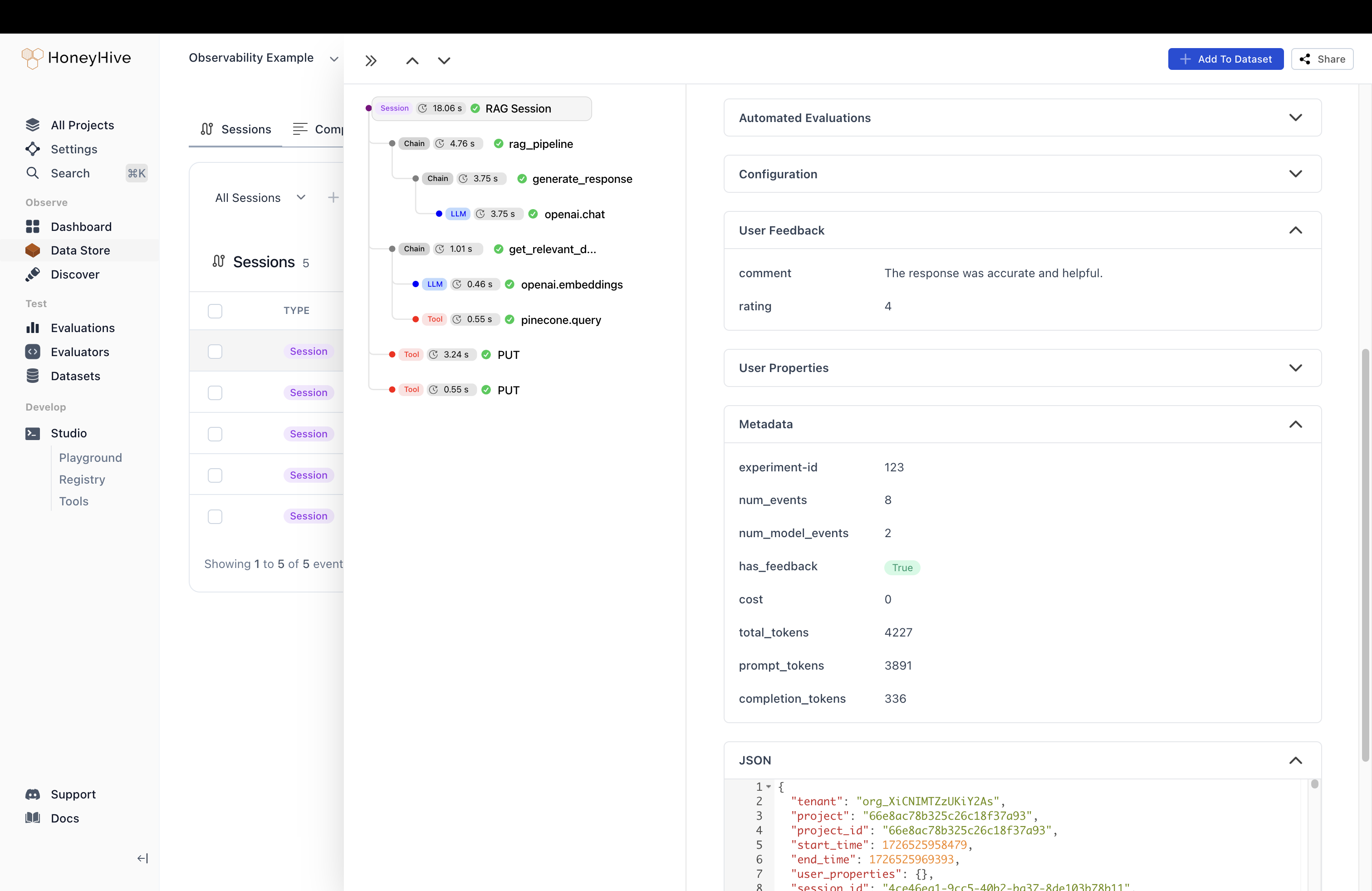
After the above enrichments, we can see the user feedback, metadata and [our other auto-aggregated properties](/tracing/aggregation-logic) appear on our session in the sideview:
Wonderful!
Using the decorator, we can easily click through the documents fetched by `get_relevant_documents` and understand whether the LLM’s answer is sensible.
Our UI makes it easy to navigate extremely nested JSONs with large text to make debugging smoother.
Just by investigating these spans we can quickly debug whether our retriever or generation step is causing our overall application to fail.
## Phase 2 - Enrich the data
For the next phase, let’s add in any other external context that’s available to us to the trace.
This will help us later when charting the data and understanding aggregate trends in usage and feedback.
### 4. Enrich the Custom Spans with Configuration and Metadata
The `trace` decorator accepts metadata and configuration to provide more context to the traces:
```python Python theme={null}
# logic above remains the above
# pass relevant config and metadata to the decorator here
@trace(
config={
"embedding_model": "text-embedding-ada-002",
"top_k": 3
}
)
def get_relevant_documents(query):
results = index.query(vector=query, top_k=3)
return [result.metadata["text"] for result in results.matches]
# pass relevant config and metadata to the decorator here
@trace(
config={
"model": "gpt-4o",
"prompt": "You are a helpful assistant"
},
metadata={
"version": 1
}
)
def generate_response(context, query):
prompt = f"Context: {context}\n\nQuestion: {query}\n\nAnswer:"
response = openai_client.chat.completions.create(
model="gpt-4o",
messages=[
{"role": "system", "content": "You are a helpful assistant."},
{"role": "user", "content": prompt}
]
)
return response.choices[0].message.content
# logic below remains the same
```
```TypeScript TypeScript theme={null}
// logic above remains the same
const getRelevantDocumentsConfig = {
"embedding_model": "text-embedding-ada-002",
"top_k": 3
};
const getRelevantDocuments = tracer.traceFunction({
metadata: getRelevantDocumentsConfig
})(
async function getRelevantDocuments(queryVector: number[]): Promise {
const queryResult = await index.query({
vector: queryVector,
topK: 3,
includeMetadata: true
});
return queryResult.matches.map(item => item.metadata!._node_content as string);
}
);
interface GenerateResponseConfig {
model: string;
prompt: string;
}
interface GenerateResponseMetadata {
version: number;
}
const generateResponseConfig: GenerateResponseConfig = {
"model": "gpt-4o",
"prompt": "You are a helpful assistant"
};
const generateResponseMetadata: GenerateResponseMetadata = {
"version": 1
};
const generateResponse = tracer.traceFunction({
metadata: {
...generateResponseConfig,
...generateResponseMetadata
}
})(
async function generateResponse(context: string, query: string): Promise {
const prompt = `Context: ${context}\n\nQuestion: ${query}\n\nAnswer:`;
const completion = await openai.chat.completions.create({
model: "gpt-4",
messages: [
{ role: "system", content: "You are a helpful assistant." },
{ role: "user", content: prompt }
]
});
return completion.choices[0].message.content || "";
}
);
// logic below remains the same
```
### 5. Enrich the trace with Feedback and Metadata
We can enrich the session by calling it from anywhere else in the code. For example, we'll call our RAG pipeline function from another `main` function.
Using the `enrich_session`/`enrichSession` helper functions on our base tracer class, we will enrich the full session with the relevant external context as well.
```python Python theme={null}
# logic above remains the same
def main():
query = "What is the capital of France?"
response = rag_pipeline(query)
print(f"Query: {query}")
print(f"Response: {response}")
# Setting metadata on the session
# Simulate getting user feedback
user_rating = 4
HoneyHiveTracer.enrich_session(
feedback={
"rating": user_rating,
"comment": "The response was accurate and helpful."
},
metadata={
"experiment-id": 123
}
)
if __name__ == "__main__":
main()
```
```TypeScript TypeScript theme={null}
// logic above remains the same
async function main(): Promise {
let query = "What does the document talk about?";
let response = await ragPipeline(query);
console.log("Query", query);
console.log("Response", response);
let userRating = 4;
await tracer.enrichSession({
feedback: {
"rating": userRating,
"comment": "The response was accurate and helpful."
},
metadata: {
"experiment-id": 1234
}
});
}
await tracer.trace(() => main())
```
After the above enrichments, we can see the user feedback, metadata and [our other auto-aggregated properties](/tracing/aggregation-logic) appear on our session in the sideview:
 ## Putting It All Together
Let's combine all the concepts we've covered into a complete example of a RAG application with HoneyHive observability:
```python Python theme={null}
import os
from openai import OpenAI
from pinecone import Pinecone
from honeyhive import HoneyHiveTracer, trace
# Set up environment variables
os.environ["OPENAI_API_KEY"] = "your-openai-api-key"
os.environ["PINECONE_API_KEY"] = "your-pinecone-api-key"
# Initialize HoneyHive Tracer
HoneyHiveTracer.init(
api_key="your-honeyhive-api-key",
project="your-honeyhive-project-name",
source="dev",
session_name="RAG Session"
)
# Initialize clients
openai_client = OpenAI()
pc = Pinecone()
index = pc.Index("your-index-name")
def embed_query(query):
res = openai_client.embeddings.create(
model="text-embedding-ada-002",
input=query
)
query_vector = res.data[0].embedding
return query_vector
# Decorate the intermediate steps
@trace(
config={
"embedding_model": "text-embedding-ada-002",
"top_k": 3
}
)
def get_relevant_documents(query):
query_vector = embed_query(query)
res = index.query(vector=query_vector, top_k=3, include_metadata=True)
return [item['metadata']['_node_content'] for item in res['matches']]
# Decorate the intermediate steps
@trace(
config={
"model": "gpt-4o",
"prompt": "You are a helpful assistant"
},
metadata={
"version": 1
}
)
def generate_response(context, query):
prompt = f"Context: {context}\n\nQuestion: {query}\n\nAnswer:"
response = openai_client.chat.completions.create(
model="gpt-4o",
messages=[
{"role": "system", "content": "You are a helpful assistant."},
{"role": "user", "content": prompt}
]
)
return response.choices[0].message.content
# Decorate the main application logic
@trace
def rag_pipeline(query):
docs = get_relevant_documents(query)
response = generate_response("\n".join(docs), query)
return response
def main():
query = "What does the document talk about?"
response = rag_pipeline(query)
print(f"Query: {query}")
print(f"Response: {response}")
# Set relevant metadata on the session level
# Simulate getting user feedback
user_rating = 4
HoneyHiveTracer.enrich_session(
feedback={
"rating": user_rating,
"comment": "The response was accurate and helpful."
},
metadata={
"experiment-id": 123
}
)
if __name__ == "__main__":
main()
```
```TypeScript TypeScript theme={null}
import * as dotenv from 'dotenv';
import { OpenAI } from 'openai';
import { Pinecone } from '@pinecone-database/pinecone';
import { HoneyHiveTracer } from "honeyhive";
dotenv.config();
const tracer: HoneyHiveTracer = await HoneyHiveTracer.init({
apiKey: process.env.HH_API_KEY || '',
project: process.env.HH_PROJECT || '',
source: "dev", // e.g. "prod", "dev", etc.
sessionName: "RAG Session",
});
const openai = new OpenAI({ apiKey: process.env.OPENAI_API_KEY || '' });
const pc = new Pinecone({ apiKey: process.env.PINECONE_API_KEY || '' });
const index = pc.index("your-index-name");
const embedQuery = async (query: string) => {
const embeddingResponse = await openai.embeddings.create({
model: "text-embedding-ada-002",
input: query
});
return embeddingResponse.data[0].embedding;
};
const getRelevantDocumentsConfig = {
"embedding_model": "text-embedding-ada-002",
"top_k": 3
};
const getRelevantDocuments = tracer.traceFunction({
metadata: getRelevantDocumentsConfig
})(
async function getRelevantDocuments(queryVector: number[]): Promise {
const queryResult = await index.query({
vector: queryVector,
topK: 3,
includeMetadata: true
});
return queryResult.matches.map(item => item.metadata!._node_content as string);
}
);
interface GenerateResponseConfig {
model: string;
prompt: string;
}
interface GenerateResponseMetadata {
version: number;
}
const generateResponseConfig: GenerateResponseConfig = {
"model": "gpt-4o",
"prompt": "You are a helpful assistant"
};
const generateResponseMetadata: GenerateResponseMetadata = {
"version": 1
};
const generateResponse = tracer.traceFunction({
metadata: {
...generateResponseConfig,
...generateResponseMetadata
}
})(
async function generateResponse(context: string, query: string): Promise {
const prompt = `Context: ${context}\n\nQuestion: ${query}\n\nAnswer:`;
const completion = await openai.chat.completions.create({
model: "gpt-4",
messages: [
{ role: "system", content: "You are a helpful assistant." },
{ role: "user", content: prompt }
]
});
return completion.choices[0].message.content || "";
}
);
const ragPipeline = tracer.traceFunction()(
async function ragPipeline(query: string): Promise {
const queryVector = await embedQuery(query);
const relevantDocs = await getRelevantDocuments(queryVector);
const context = relevantDocs.join("\n");
const response = await generateResponse(context, query);
return response;
}
);
async function main(): Promise {
let query = "What does the document talk about?";
let response = await ragPipeline(query);
console.log("Query", query);
console.log("Response", response);
let userRating = 4;
await tracer.enrichSession({
feedback: {
"rating": userRating,
"comment": "The response was accurate and helpful."
},
metadata: {
"experiment-id": 1234
}
});
}
await tracer.trace(() => main())
```
In this example:
1. We set up the necessary environment variables and initialize the HoneyHive Tracer.
2. We create clients for OpenAI and Pinecone, which will be automatically instrumented by HoneyHive.
3. We split our main application function into three smaller traced functions:
* `get_relevant_documents`/`getRelevantDocuments`: Retrieves relevant documents from Pinecone.
* `generate_response`/`generateResponse`: Generates a response using OpenAI's GPT model.
* `rag_pipeline`/`ragPipeline`: Orchestrates the entire RAG process.
4. In the `main` function, we:
* Run the RAG pipeline with a sample query.
* Print the query and response.
* Simulate collecting user feedback and log it to HoneyHive.
5. Throughout the code, we add metadata and custom spans to provide rich context for our traces.
This example demonstrates how HoneyHive provides comprehensive observability for your LLM application, allowing you to track and analyze every step of your RAG pipeline.
## Best Practices
1. **Use descriptive names for function names**: This makes it easier to understand the structure of your application in the traces.
2. **Add relevant metadata**: Include information that will help you filter and analyze traces later, such as user IDs, experiment IDs, or version numbers.
3. **Collect user feedback**: This provides valuable insights into the real-world performance of your application.
4. **Use nested spans**: Structure your traces to reflect the hierarchy of your application's components.
## Conclusion
By following this tutorial, you've added comprehensive observability to your LLM application using HoneyHive. This will help you iterate quickly, identify issues, and improve the performance of your application throughout its lifecycle.
For more advanced features and in-depth guides, check out the following resources:
* [Python Custom Spans Documentation](/tracing/custom-spans)
* [JS/TS Custom Spans Documentation](/tracing/custom-spans)
* [User Feedback Logging](/tracing/setting-user-feedback)
* [Adding Tags and Metadata](/tracing/setting-metadata)
* [Analyzing Traces and Creating Charts](/monitoring/charts)
## Next Steps
The next phase after capturing the right data from your application is setting up online evaluators and collecting datasets to measure quality in production.
The following guides will help you configure different types of evaluators for any step in your application.
Learn how to add a Python evaluator for specific steps or the whole application's trace.
Learn how to add a LLM evaluator for specific steps or the the whole application's trace.
Configure human annotation for specific steps or the whole application's trace.
Learn how to curate a dataset of inputs & outputs from your traces
## Putting It All Together
Let's combine all the concepts we've covered into a complete example of a RAG application with HoneyHive observability:
```python Python theme={null}
import os
from openai import OpenAI
from pinecone import Pinecone
from honeyhive import HoneyHiveTracer, trace
# Set up environment variables
os.environ["OPENAI_API_KEY"] = "your-openai-api-key"
os.environ["PINECONE_API_KEY"] = "your-pinecone-api-key"
# Initialize HoneyHive Tracer
HoneyHiveTracer.init(
api_key="your-honeyhive-api-key",
project="your-honeyhive-project-name",
source="dev",
session_name="RAG Session"
)
# Initialize clients
openai_client = OpenAI()
pc = Pinecone()
index = pc.Index("your-index-name")
def embed_query(query):
res = openai_client.embeddings.create(
model="text-embedding-ada-002",
input=query
)
query_vector = res.data[0].embedding
return query_vector
# Decorate the intermediate steps
@trace(
config={
"embedding_model": "text-embedding-ada-002",
"top_k": 3
}
)
def get_relevant_documents(query):
query_vector = embed_query(query)
res = index.query(vector=query_vector, top_k=3, include_metadata=True)
return [item['metadata']['_node_content'] for item in res['matches']]
# Decorate the intermediate steps
@trace(
config={
"model": "gpt-4o",
"prompt": "You are a helpful assistant"
},
metadata={
"version": 1
}
)
def generate_response(context, query):
prompt = f"Context: {context}\n\nQuestion: {query}\n\nAnswer:"
response = openai_client.chat.completions.create(
model="gpt-4o",
messages=[
{"role": "system", "content": "You are a helpful assistant."},
{"role": "user", "content": prompt}
]
)
return response.choices[0].message.content
# Decorate the main application logic
@trace
def rag_pipeline(query):
docs = get_relevant_documents(query)
response = generate_response("\n".join(docs), query)
return response
def main():
query = "What does the document talk about?"
response = rag_pipeline(query)
print(f"Query: {query}")
print(f"Response: {response}")
# Set relevant metadata on the session level
# Simulate getting user feedback
user_rating = 4
HoneyHiveTracer.enrich_session(
feedback={
"rating": user_rating,
"comment": "The response was accurate and helpful."
},
metadata={
"experiment-id": 123
}
)
if __name__ == "__main__":
main()
```
```TypeScript TypeScript theme={null}
import * as dotenv from 'dotenv';
import { OpenAI } from 'openai';
import { Pinecone } from '@pinecone-database/pinecone';
import { HoneyHiveTracer } from "honeyhive";
dotenv.config();
const tracer: HoneyHiveTracer = await HoneyHiveTracer.init({
apiKey: process.env.HH_API_KEY || '',
project: process.env.HH_PROJECT || '',
source: "dev", // e.g. "prod", "dev", etc.
sessionName: "RAG Session",
});
const openai = new OpenAI({ apiKey: process.env.OPENAI_API_KEY || '' });
const pc = new Pinecone({ apiKey: process.env.PINECONE_API_KEY || '' });
const index = pc.index("your-index-name");
const embedQuery = async (query: string) => {
const embeddingResponse = await openai.embeddings.create({
model: "text-embedding-ada-002",
input: query
});
return embeddingResponse.data[0].embedding;
};
const getRelevantDocumentsConfig = {
"embedding_model": "text-embedding-ada-002",
"top_k": 3
};
const getRelevantDocuments = tracer.traceFunction({
metadata: getRelevantDocumentsConfig
})(
async function getRelevantDocuments(queryVector: number[]): Promise {
const queryResult = await index.query({
vector: queryVector,
topK: 3,
includeMetadata: true
});
return queryResult.matches.map(item => item.metadata!._node_content as string);
}
);
interface GenerateResponseConfig {
model: string;
prompt: string;
}
interface GenerateResponseMetadata {
version: number;
}
const generateResponseConfig: GenerateResponseConfig = {
"model": "gpt-4o",
"prompt": "You are a helpful assistant"
};
const generateResponseMetadata: GenerateResponseMetadata = {
"version": 1
};
const generateResponse = tracer.traceFunction({
metadata: {
...generateResponseConfig,
...generateResponseMetadata
}
})(
async function generateResponse(context: string, query: string): Promise {
const prompt = `Context: ${context}\n\nQuestion: ${query}\n\nAnswer:`;
const completion = await openai.chat.completions.create({
model: "gpt-4",
messages: [
{ role: "system", content: "You are a helpful assistant." },
{ role: "user", content: prompt }
]
});
return completion.choices[0].message.content || "";
}
);
const ragPipeline = tracer.traceFunction()(
async function ragPipeline(query: string): Promise {
const queryVector = await embedQuery(query);
const relevantDocs = await getRelevantDocuments(queryVector);
const context = relevantDocs.join("\n");
const response = await generateResponse(context, query);
return response;
}
);
async function main(): Promise {
let query = "What does the document talk about?";
let response = await ragPipeline(query);
console.log("Query", query);
console.log("Response", response);
let userRating = 4;
await tracer.enrichSession({
feedback: {
"rating": userRating,
"comment": "The response was accurate and helpful."
},
metadata: {
"experiment-id": 1234
}
});
}
await tracer.trace(() => main())
```
In this example:
1. We set up the necessary environment variables and initialize the HoneyHive Tracer.
2. We create clients for OpenAI and Pinecone, which will be automatically instrumented by HoneyHive.
3. We split our main application function into three smaller traced functions:
* `get_relevant_documents`/`getRelevantDocuments`: Retrieves relevant documents from Pinecone.
* `generate_response`/`generateResponse`: Generates a response using OpenAI's GPT model.
* `rag_pipeline`/`ragPipeline`: Orchestrates the entire RAG process.
4. In the `main` function, we:
* Run the RAG pipeline with a sample query.
* Print the query and response.
* Simulate collecting user feedback and log it to HoneyHive.
5. Throughout the code, we add metadata and custom spans to provide rich context for our traces.
This example demonstrates how HoneyHive provides comprehensive observability for your LLM application, allowing you to track and analyze every step of your RAG pipeline.
## Best Practices
1. **Use descriptive names for function names**: This makes it easier to understand the structure of your application in the traces.
2. **Add relevant metadata**: Include information that will help you filter and analyze traces later, such as user IDs, experiment IDs, or version numbers.
3. **Collect user feedback**: This provides valuable insights into the real-world performance of your application.
4. **Use nested spans**: Structure your traces to reflect the hierarchy of your application's components.
## Conclusion
By following this tutorial, you've added comprehensive observability to your LLM application using HoneyHive. This will help you iterate quickly, identify issues, and improve the performance of your application throughout its lifecycle.
For more advanced features and in-depth guides, check out the following resources:
* [Python Custom Spans Documentation](/tracing/custom-spans)
* [JS/TS Custom Spans Documentation](/tracing/custom-spans)
* [User Feedback Logging](/tracing/setting-user-feedback)
* [Adding Tags and Metadata](/tracing/setting-metadata)
* [Analyzing Traces and Creating Charts](/monitoring/charts)
## Next Steps
The next phase after capturing the right data from your application is setting up online evaluators and collecting datasets to measure quality in production.
The following guides will help you configure different types of evaluators for any step in your application.
Learn how to add a Python evaluator for specific steps or the whole application's trace.
Learn how to add a LLM evaluator for specific steps or the the whole application's trace.
Configure human annotation for specific steps or the whole application's trace.
Learn how to curate a dataset of inputs & outputs from your traces