> ## Documentation Index
> Fetch the complete documentation index at: https://docs.honeyhive.ai/llms.txt
> Use this file to discover all available pages before exploring further.
# LLM Evaluators
> Create LLM-powered evaluators in HoneyHive using custom prompts and rubrics. Score traces and experiment outputs with model-based judges and event filters.
LLM evaluators use large language models to evaluate the quality of AI-generated responses based on custom criteria. They're ideal for qualitative evaluations like coherence, relevance, faithfulness, and tone.
## Set up an LLM provider
LLM evaluators call a model through an AI provider configured in your HoneyHive workspace. Configure at least one provider before creating an LLM evaluator.
Go to **Settings > Workspace > AI Providers**.
If you can view AI provider settings, you can also open this page from the LLM evaluator editor by clicking **Configure AI Providers ↗** above the Provider dropdown.
Find the provider you want to use, click the pencil icon, enter the required credentials, and click **Save**. The provider's status changes to **Configured**.
See [Supported providers](/v2/workspace/provider-keys#supported-providers) for the required credentials for each provider.
In the LLM evaluator editor, select the configured **Provider** and **Model**.
See [Provider Keys](/v2/workspace/provider-keys) for credentials, workspace scoping, and permissions.
## Creating an LLM Evaluator
1. Navigate to the [**Evaluators**](https://app.us.honeyhive.ai/metrics) tab in the HoneyHive console.
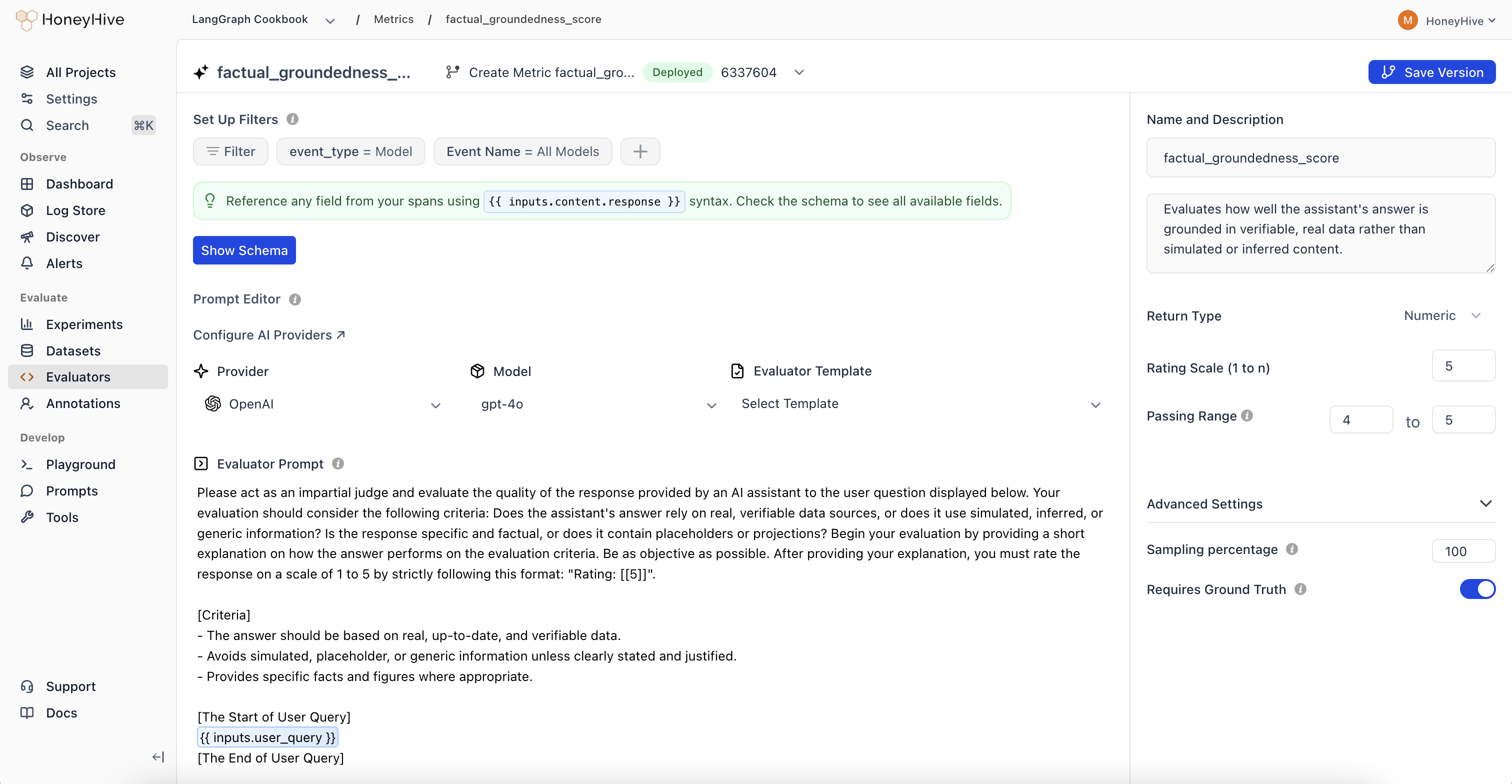
2. Click `Add Evaluator` and select `LLM Evaluator`.
3. Write the evaluator prompt, configure the return type and filters, and click `Create`.
 ## Event Schema
LLM evaluators operate on event objects from your traces. Use `{{ }}` syntax to reference event properties in your prompt.
| Property | Description | Example |
| ------------ | ----------------------------------------------------- | ----------------------------- |
| `event_type` | Type of event: `model`, `tool`, `chain`, or `session` | `{{ event_type }}` |
| `event_name` | Name of the event or session | `{{ event_name }}` |
| `inputs` | Input data (prompt, query, context, etc.) | `{{ inputs.question }}` |
| `outputs` | Output data (completion, response, etc.) | `{{ outputs.content }}` |
| `feedback` | User feedback and ground truth | `{{ feedback.ground_truth }}` |
Click `Show Schema` in the evaluator console to explore all available event properties for your project.
For detailed event schema documentation and tracing setup, see [Configuring Tracing for Server-Side Evaluators](/v2/evaluators/evaluator-templates#configuring-tracing-for-server-side-evaluators).
## Evaluation Prompt
Define your evaluation prompt using the `{{ }}` syntax to inject event data:
```markdown theme={null}
[Instruction]
Evaluate the AI assistant's answer based on:
1. Relevance to the question
2. Accuracy of information
3. Clarity and coherence
4. Completeness of the answer
Provide a brief explanation and rate the response on a scale of 1 to 5.
[Question]
{{ inputs.question }}
[Context]
{{ inputs.context }}
[AI Assistant's Answer]
{{ outputs.content }}
[Evaluation]
Explanation:
Rating: [[X]]
```
Use the `[[X]]` pattern for ratings. The evaluator automatically extracts the value inside the brackets.
Looking for ready-made examples? Check out our [LLM Evaluator Templates](/v2/evaluators/evaluator-templates#llm-evaluator-templates).
## Advanced Template Syntax
Beyond basic `{{ field }}` references, LLM evaluator prompts support [Jinja2](https://jinja.palletsprojects.com/en/stable/templates/) conditionals, loops, and filters. This is most useful for multi-turn conversations and agent traces, where you often need to evaluate only user turns, assistant replies, or tool calls.
### Score a subset of a conversation
A chat trace captures every role (`system`, `user`, `assistant`, `tool`). To judge user satisfaction, filter the conversation to user turns with `selectattr`. This surfaces signals like repeated questions, "that didn't help", or "thanks, that works" without sending the full transcript.
```markdown theme={null}
[Instruction]
Below are only the user's messages from a support conversation, in order.
Rate the user's overall satisfaction from 1 (frustrated, unresolved) to 5 (clearly satisfied).
[User messages]
{%- for message in inputs.chat_history | selectattr("role", "equalto", "user") %}
{{ loop.index }}. {{ message.content | truncate(300) }}
{%- endfor %}
[Evaluation]
Explanation:
Rating: [[X]]
```
This example assumes the evaluated event has `inputs.chat_history` as a conversation array. Some integrations, including [OpenAI](/v2/integrations/openai) and [OpenAI Agents SDK](/v2/integrations/openai-agents), capture chat messages on individual `model` events while the root `session` event may not include a rolled-up `inputs.chat_history` by default. Confirm the field exists in **Show Schema** before using this pattern, and adapt the path if your event uses another array such as `inputs.messages` or `outputs.chat_history`. For online evaluation, target events that already contain the conversation array, or use session-level filters only when the session event has that array at evaluation time.
For ready-to-use versions of this and related multi-turn judges (frustration, resolution, tool trajectory, repetition loops, and more), see [Conversation Evaluator Templates](/v2/evaluators/evaluator-templates#conversation-evaluator-templates).
### Adapt to varying event shapes
Conditionals and fallbacks let one prompt handle events that don't always carry the same fields. This RAG faithfulness prompt includes context only when present and falls back gracefully when a field is missing:
```markdown theme={null}
[Instruction]
Rate how well the answer uses the provided context. Score 1-5.
{%- if inputs.context %}
[Context]
{{ inputs.context | truncate(2000) }}
{%- endif %}
[Question]
{{ inputs.question | default("N/A") }}
[Answer]
{{ outputs.content | default("N/A") }}
[Evaluation]
Explanation:
Rating: [[X]]
```
### Common patterns
| Pattern | Example |
| ---------------------- | --------------------------------------------------------------------------------------------- |
| Filter by role | `{% for m in inputs.chat_history \| selectattr("role", "equalto", "user") %}` |
| Drop noise | `inputs.chat_history \| rejectattr("role", "equalto", "tool")` |
| Compact transcript | `inputs.chat_history \| map(attribute="content") \| join("\n")` |
| Alternate message path | Replace `inputs.chat_history` with `inputs.messages` if that is what **Show Schema** displays |
| Optional field | `{% if inputs.context %}...{% endif %}` |
| Fallback | `{{ outputs.content \| default("N/A") }}` |
| Truncate | `{{ inputs.context \| truncate(2000) }}` |
| First / last turn | `{{ inputs.chat_history[0].content }}`, `{{ inputs.chat_history[-1].content }}` |
Loops and filters require an actual array field. Use **Show Schema** to confirm where conversation history is available for the event type your evaluator targets.
Field names are case-sensitive. Use the exact casing shown in **Show Schema**. For array access, prefer bracket notation (`chat_history[0].content`) in new prompts because it is explicit and matches JSON indexing.
## Configuration
### Return Type
* **Boolean**: For true/false evaluations
* **Numeric**: For scores or ratings (e.g., 1-5)
* **String**: For categorical labels or text responses
### Passing Range
Define the range of scores that indicate a passing evaluation. Useful for CI/CD pipelines and identifying failed test cases.
### Enabled
Toggle to run this evaluator on all traces that match your event filters.
### Sampling Percentage
Run your evaluator on a percentage of matching events to manage costs. New evaluators default to **10%** sampling. Adjust based on event volume and cost budget - for example, set 25% to evaluate one in four matching events.
Sampling applies to all traces that match your event filters. To evaluate only a subset of events, combine sampling with specific event filters.
## Event Filters
Use **Set Up Filters** to specify which events trigger this evaluator. Filters are ANDed together - an event must match all filters to be evaluated.
### Preset Filters
Every evaluator includes two preset filters by default:
* **Event Type**: Filter by `model`, `tool`, `chain`, or `session`
* **Event Name**: Target a specific event name, or use "All" (e.g., "All Models") to match any event of that type
### Additional Filters
Click the **+** button to add filters on any event property. You can filter on any field available in your event schema, including nested properties using dot notation (e.g., `inputs.question`, `metadata.model`, `outputs.content`).
Each filter consists of:
* **Field**: Any property from the event schema
* **Operator**: Depends on the field type (see below)
* **Value**: The value to compare against
**Operators by field type:**
| Field Type | Operators |
| ------------ | ------------------------------------------------------------------- |
| **String** | `is`, `is not`, `contains`, `not contains`, `exists`, `not exists` |
| **Number** | `is`, `is not`, `greater than`, `less than`, `exists`, `not exists` |
| **Boolean** | `is`, `exists`, `not exists` |
| **Datetime** | `is`, `is not`, `after`, `before`, `exists`, `not exists` |
Click **Show Schema** in the evaluator editor to browse all available event properties you can filter on.
## Next Steps
Create code-based evaluators for programmatic checks
Ready-to-use LLM and Python evaluator templates
Use evaluators in offline experiments
Set up human review workflows
Check evaluators into your repo and apply them with the CLI
Route evaluator calls through Portkey to access 1,600+ models
## Event Schema
LLM evaluators operate on event objects from your traces. Use `{{ }}` syntax to reference event properties in your prompt.
| Property | Description | Example |
| ------------ | ----------------------------------------------------- | ----------------------------- |
| `event_type` | Type of event: `model`, `tool`, `chain`, or `session` | `{{ event_type }}` |
| `event_name` | Name of the event or session | `{{ event_name }}` |
| `inputs` | Input data (prompt, query, context, etc.) | `{{ inputs.question }}` |
| `outputs` | Output data (completion, response, etc.) | `{{ outputs.content }}` |
| `feedback` | User feedback and ground truth | `{{ feedback.ground_truth }}` |
Click `Show Schema` in the evaluator console to explore all available event properties for your project.
For detailed event schema documentation and tracing setup, see [Configuring Tracing for Server-Side Evaluators](/v2/evaluators/evaluator-templates#configuring-tracing-for-server-side-evaluators).
## Evaluation Prompt
Define your evaluation prompt using the `{{ }}` syntax to inject event data:
```markdown theme={null}
[Instruction]
Evaluate the AI assistant's answer based on:
1. Relevance to the question
2. Accuracy of information
3. Clarity and coherence
4. Completeness of the answer
Provide a brief explanation and rate the response on a scale of 1 to 5.
[Question]
{{ inputs.question }}
[Context]
{{ inputs.context }}
[AI Assistant's Answer]
{{ outputs.content }}
[Evaluation]
Explanation:
Rating: [[X]]
```
Use the `[[X]]` pattern for ratings. The evaluator automatically extracts the value inside the brackets.
Looking for ready-made examples? Check out our [LLM Evaluator Templates](/v2/evaluators/evaluator-templates#llm-evaluator-templates).
## Advanced Template Syntax
Beyond basic `{{ field }}` references, LLM evaluator prompts support [Jinja2](https://jinja.palletsprojects.com/en/stable/templates/) conditionals, loops, and filters. This is most useful for multi-turn conversations and agent traces, where you often need to evaluate only user turns, assistant replies, or tool calls.
### Score a subset of a conversation
A chat trace captures every role (`system`, `user`, `assistant`, `tool`). To judge user satisfaction, filter the conversation to user turns with `selectattr`. This surfaces signals like repeated questions, "that didn't help", or "thanks, that works" without sending the full transcript.
```markdown theme={null}
[Instruction]
Below are only the user's messages from a support conversation, in order.
Rate the user's overall satisfaction from 1 (frustrated, unresolved) to 5 (clearly satisfied).
[User messages]
{%- for message in inputs.chat_history | selectattr("role", "equalto", "user") %}
{{ loop.index }}. {{ message.content | truncate(300) }}
{%- endfor %}
[Evaluation]
Explanation:
Rating: [[X]]
```
This example assumes the evaluated event has `inputs.chat_history` as a conversation array. Some integrations, including [OpenAI](/v2/integrations/openai) and [OpenAI Agents SDK](/v2/integrations/openai-agents), capture chat messages on individual `model` events while the root `session` event may not include a rolled-up `inputs.chat_history` by default. Confirm the field exists in **Show Schema** before using this pattern, and adapt the path if your event uses another array such as `inputs.messages` or `outputs.chat_history`. For online evaluation, target events that already contain the conversation array, or use session-level filters only when the session event has that array at evaluation time.
For ready-to-use versions of this and related multi-turn judges (frustration, resolution, tool trajectory, repetition loops, and more), see [Conversation Evaluator Templates](/v2/evaluators/evaluator-templates#conversation-evaluator-templates).
### Adapt to varying event shapes
Conditionals and fallbacks let one prompt handle events that don't always carry the same fields. This RAG faithfulness prompt includes context only when present and falls back gracefully when a field is missing:
```markdown theme={null}
[Instruction]
Rate how well the answer uses the provided context. Score 1-5.
{%- if inputs.context %}
[Context]
{{ inputs.context | truncate(2000) }}
{%- endif %}
[Question]
{{ inputs.question | default("N/A") }}
[Answer]
{{ outputs.content | default("N/A") }}
[Evaluation]
Explanation:
Rating: [[X]]
```
### Common patterns
| Pattern | Example |
| ---------------------- | --------------------------------------------------------------------------------------------- |
| Filter by role | `{% for m in inputs.chat_history \| selectattr("role", "equalto", "user") %}` |
| Drop noise | `inputs.chat_history \| rejectattr("role", "equalto", "tool")` |
| Compact transcript | `inputs.chat_history \| map(attribute="content") \| join("\n")` |
| Alternate message path | Replace `inputs.chat_history` with `inputs.messages` if that is what **Show Schema** displays |
| Optional field | `{% if inputs.context %}...{% endif %}` |
| Fallback | `{{ outputs.content \| default("N/A") }}` |
| Truncate | `{{ inputs.context \| truncate(2000) }}` |
| First / last turn | `{{ inputs.chat_history[0].content }}`, `{{ inputs.chat_history[-1].content }}` |
Loops and filters require an actual array field. Use **Show Schema** to confirm where conversation history is available for the event type your evaluator targets.
Field names are case-sensitive. Use the exact casing shown in **Show Schema**. For array access, prefer bracket notation (`chat_history[0].content`) in new prompts because it is explicit and matches JSON indexing.
## Configuration
### Return Type
* **Boolean**: For true/false evaluations
* **Numeric**: For scores or ratings (e.g., 1-5)
* **String**: For categorical labels or text responses
### Passing Range
Define the range of scores that indicate a passing evaluation. Useful for CI/CD pipelines and identifying failed test cases.
### Enabled
Toggle to run this evaluator on all traces that match your event filters.
### Sampling Percentage
Run your evaluator on a percentage of matching events to manage costs. New evaluators default to **10%** sampling. Adjust based on event volume and cost budget - for example, set 25% to evaluate one in four matching events.
Sampling applies to all traces that match your event filters. To evaluate only a subset of events, combine sampling with specific event filters.
## Event Filters
Use **Set Up Filters** to specify which events trigger this evaluator. Filters are ANDed together - an event must match all filters to be evaluated.
### Preset Filters
Every evaluator includes two preset filters by default:
* **Event Type**: Filter by `model`, `tool`, `chain`, or `session`
* **Event Name**: Target a specific event name, or use "All" (e.g., "All Models") to match any event of that type
### Additional Filters
Click the **+** button to add filters on any event property. You can filter on any field available in your event schema, including nested properties using dot notation (e.g., `inputs.question`, `metadata.model`, `outputs.content`).
Each filter consists of:
* **Field**: Any property from the event schema
* **Operator**: Depends on the field type (see below)
* **Value**: The value to compare against
**Operators by field type:**
| Field Type | Operators |
| ------------ | ------------------------------------------------------------------- |
| **String** | `is`, `is not`, `contains`, `not contains`, `exists`, `not exists` |
| **Number** | `is`, `is not`, `greater than`, `less than`, `exists`, `not exists` |
| **Boolean** | `is`, `exists`, `not exists` |
| **Datetime** | `is`, `is not`, `after`, `before`, `exists`, `not exists` |
Click **Show Schema** in the evaluator editor to browse all available event properties you can filter on.
## Next Steps
Create code-based evaluators for programmatic checks
Ready-to-use LLM and Python evaluator templates
Use evaluators in offline experiments
Set up human review workflows
Check evaluators into your repo and apply them with the CLI
Route evaluator calls through Portkey to access 1,600+ models