> ## Documentation Index
> Fetch the complete documentation index at: https://docs.honeyhive.ai/llms.txt
> Use this file to discover all available pages before exploring further.
# Microsoft Copilot Studio
> Forward Microsoft Copilot Studio agent telemetry to HoneyHive with an Azure Function trace forwarder
[Microsoft Copilot Studio](https://www.microsoft.com/microsoft-copilot/microsoft-copilot-studio) is a low-code platform for building copilots and agents on Azure. You don't instrument the agent directly — it emits telemetry to [Azure Application Insights](https://learn.microsoft.com/azure/azure-monitor/app/app-insights-overview), and an Azure Function forwards that telemetry to HoneyHive.
This integration requires `honeyhive` Python SDK **1.4.0 or later**, which includes the `honeyhive.adapters.copilot_studio` adapter.
## How it works
```mermaid theme={null}
flowchart LR
CS[Copilot Studio agent] --> AI[Application Insights]
AI -- diagnostic export --> EH[Event Hub]
EH --> ADP
subgraph FN [Azure Function forwarder]
ADP[honeyhive.adapters.copilot_studio] --> OTLP[OTLP exporter]
end
OTLP --> HH[HoneyHive OTLP endpoint]
```
This guide uses an Event Hub for real-time forwarding. Batched export to Blob Storage also works, with a blob trigger in place of the Event Hub trigger.
## How Copilot Studio events map to HoneyHive
The adapter converts `AppEvents`, `AppRequests`, and `AppDependencies` records into spans. `AppTraces` and similar records carry log signals rather than spans and are skipped; `AppExceptions` aren't mapped yet. Each converted record becomes one span:
| Copilot Studio event | HoneyHive event name | Captured as |
| ---------------------------------------------------- | -------------------- | -------------------------------------------- |
| `BotMessageReceived` | `user_input` | `chain` event, user message in inputs |
| `BotMessageSend` | `agent_output` | `chain` event, agent response in outputs |
| `OnErrorLog` | `agent_error` | `chain` event, error status and `error.type` |
| Other events (topics, generative answers, and so on) | `agent_action` | `chain` event |
HoneyHive ingests every span as a `chain` event, and each Copilot Studio conversation shows up as a single session. The event name (`user_input`, `agent_output`, and so on) distinguishes each kind, with the message content captured in the event's inputs and outputs.
## Prerequisites
* Python 3.11+
* [Azure Functions Core Tools v4](https://learn.microsoft.com/azure/azure-functions/functions-run-local)
* [Azure Developer CLI (`azd`)](https://learn.microsoft.com/azure/developer/azure-developer-cli/install-azd)
* A Copilot Studio agent sending telemetry to Application Insights
* An Azure Event Hub to receive diagnostic exports
* A HoneyHive project and API key from [**Settings > Project > API Keys**](https://app.us.honeyhive.ai/settings/project/keys)
## Setup
In Copilot Studio, open your agent and go to **Settings > Advanced > Application Insights**. Paste the **connection string** from your Application Insights resource, then enable:
* **Enable logging** so incoming and outgoing messages and events are logged
* **Log conversation details** so user ID, user name, and message text are captured
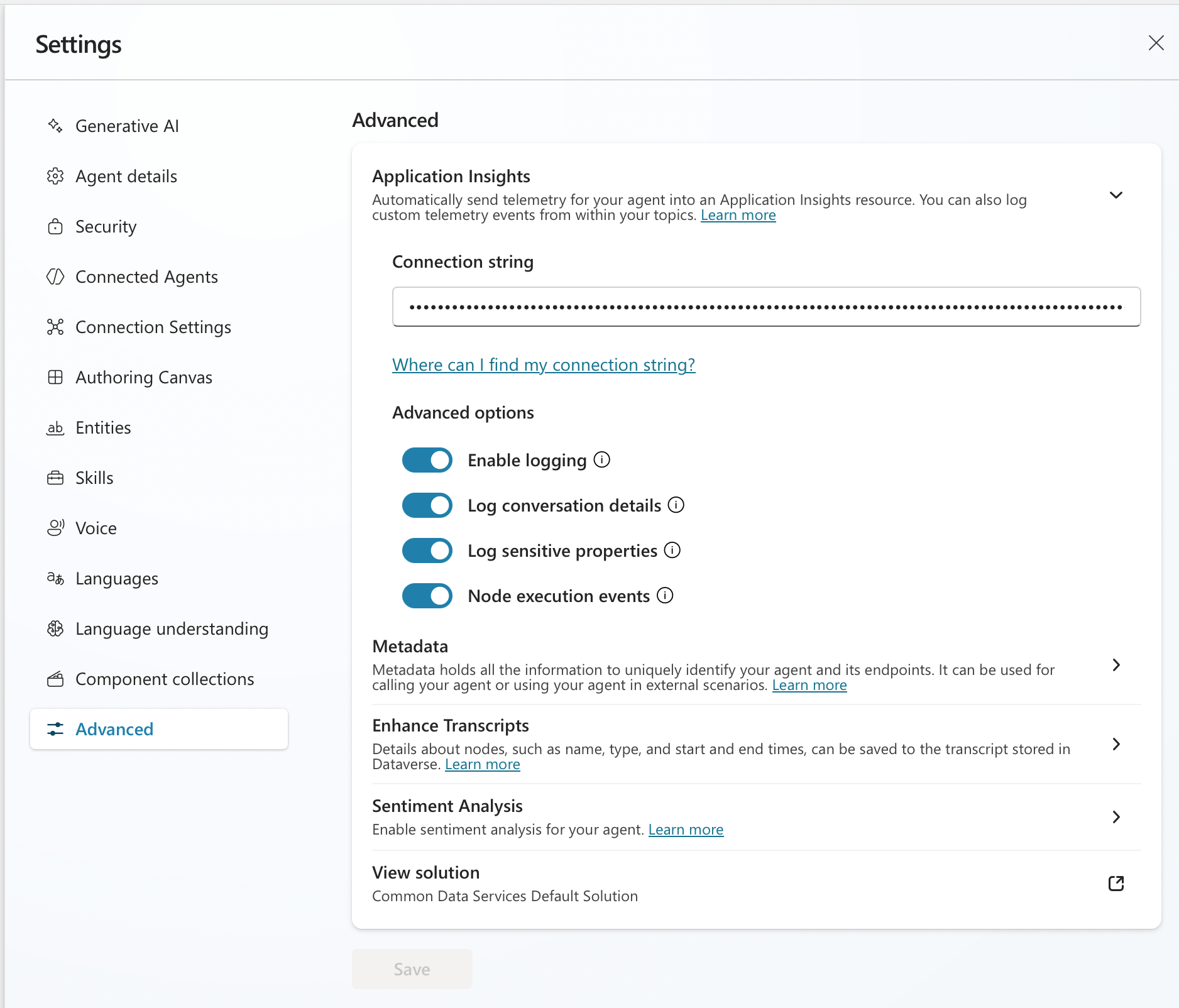 **Message text drives HoneyHive inputs and outputs.** Without **Log conversation details**, Copilot Studio logs events but omits message `text`, so spans arrive with empty inputs and outputs. Review your privacy requirements before enabling it, since it logs message content.
The quickest path is `azd init` with the official Event Hub Functions template, then replace the generated `function_app.py` with the forwarder code below:
```bash theme={null}
azd init --template Azure-Samples/functions-quickstart-python-azd-eventhub
azd provision
```
Minimum required resources:
* **Function App** (Flex Consumption or Consumption plan, Python 3.11+)
* **Storage Account** (required by the Functions runtime)
* **Event Hub namespace + hub** wired to your Copilot Studio diagnostic export
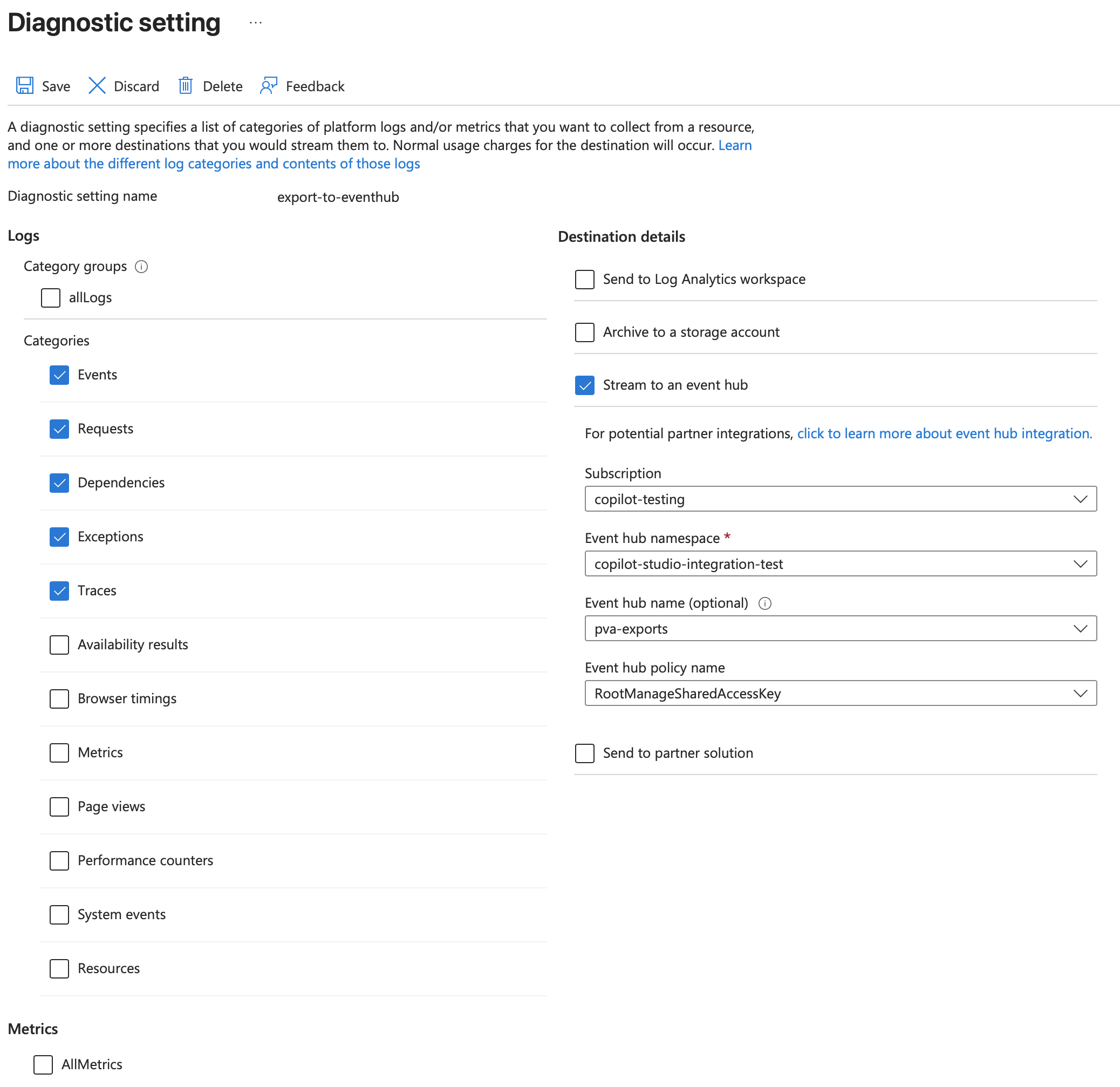
In the Azure portal, open the Application Insights resource used by your Copilot Studio agent and go to **Diagnostic settings > Add diagnostic setting**.
* Select log categories: `AppEvents`, `AppRequests`, `AppDependencies`
* Set the destination to **Stream to an event hub** and select your Event Hub namespace and hub
**Message text drives HoneyHive inputs and outputs.** Without **Log conversation details**, Copilot Studio logs events but omits message `text`, so spans arrive with empty inputs and outputs. Review your privacy requirements before enabling it, since it logs message content.
The quickest path is `azd init` with the official Event Hub Functions template, then replace the generated `function_app.py` with the forwarder code below:
```bash theme={null}
azd init --template Azure-Samples/functions-quickstart-python-azd-eventhub
azd provision
```
Minimum required resources:
* **Function App** (Flex Consumption or Consumption plan, Python 3.11+)
* **Storage Account** (required by the Functions runtime)
* **Event Hub namespace + hub** wired to your Copilot Studio diagnostic export
In the Azure portal, open the Application Insights resource used by your Copilot Studio agent and go to **Diagnostic settings > Add diagnostic setting**.
* Select log categories: `AppEvents`, `AppRequests`, `AppDependencies`
* Set the destination to **Stream to an event hub** and select your Event Hub namespace and hub
 The Event Hub trigger unpacks each message's `records` array, converts them to spans, and exports them:
```python theme={null}
import json
import azure.functions as func
from opentelemetry.exporter.otlp.proto.http.trace_exporter import OTLPSpanExporter
from honeyhive.adapters.copilot_studio import copilot_studio_records_to_spans
app = func.FunctionApp()
exporter = OTLPSpanExporter() # reads OTEL_EXPORTER_OTLP_* settings
@app.function_name("forward_from_event_hub")
@app.event_hub_message_trigger(
arg_name="events",
event_hub_name="%EVENT_HUB_NAME%",
connection="EventHubConnection",
consumer_group="%EVENT_HUB_CONSUMER_GROUP%",
cardinality=func.Cardinality.MANY,
)
def forward_from_event_hub(events: list[func.EventHubEvent]) -> None:
records: list[dict[str, object]] = []
for event in events:
body = json.loads(event.get_body().decode("utf-8"))
records.extend(body.get("records", []))
spans = copilot_studio_records_to_spans(records)
if spans:
exporter.export(spans)
```
`copilot_studio_records_to_spans` accepts Azure Monitor diagnostic-export records and returns OpenTelemetry `ReadableSpan` objects, handling trace and session correlation. For batched export, swap the Event Hub trigger for a blob trigger that reads the archived records and passes the same `records` list to the adapter.
Add these dependencies to the project's `requirements.txt`:
```text theme={null}
honeyhive
azure-functions
opentelemetry-exporter-otlp-proto-http
```
Set the OTLP export settings and the Event Hub connection on the Function App.
```bash theme={null}
az functionapp config appsettings set \
--name \
--resource-group \
--settings \
OTEL_EXPORTER_OTLP_ENDPOINT=https://api.dp1.us.honeyhive.ai/opentelemetry \
"OTEL_EXPORTER_OTLP_HEADERS=authorization=Bearer " \
"EventHubConnection=" \
EVENT_HUB_NAME= \
EVENT_HUB_CONSUMER_GROUP='$Default'
```
**Always required:**
| Setting | Description |
| ----------------------------- | ------------------------------------------------------------------------------------------------------------------------------------------------------------------- |
| `OTEL_EXPORTER_OTLP_ENDPOINT` | Your HoneyHive data plane host with the `/opentelemetry` path (for example `https://api.dp1.us.honeyhive.ai/opentelemetry`). The HTTP exporter appends `/v1/traces` |
| `OTEL_EXPORTER_OTLP_HEADERS` | `authorization=Bearer ` |
**Event Hub trigger:**
| Setting | Description |
| -------------------------- | -------------------------------------------------- |
| `EventHubConnection` | Connection string for the Event Hub namespace |
| `EVENT_HUB_NAME` | Name of the Event Hub receiving diagnostic exports |
| `EVENT_HUB_CONSUMER_GROUP` | Consumer group; defaults to `$Default` |
```bash theme={null}
azd deploy
```
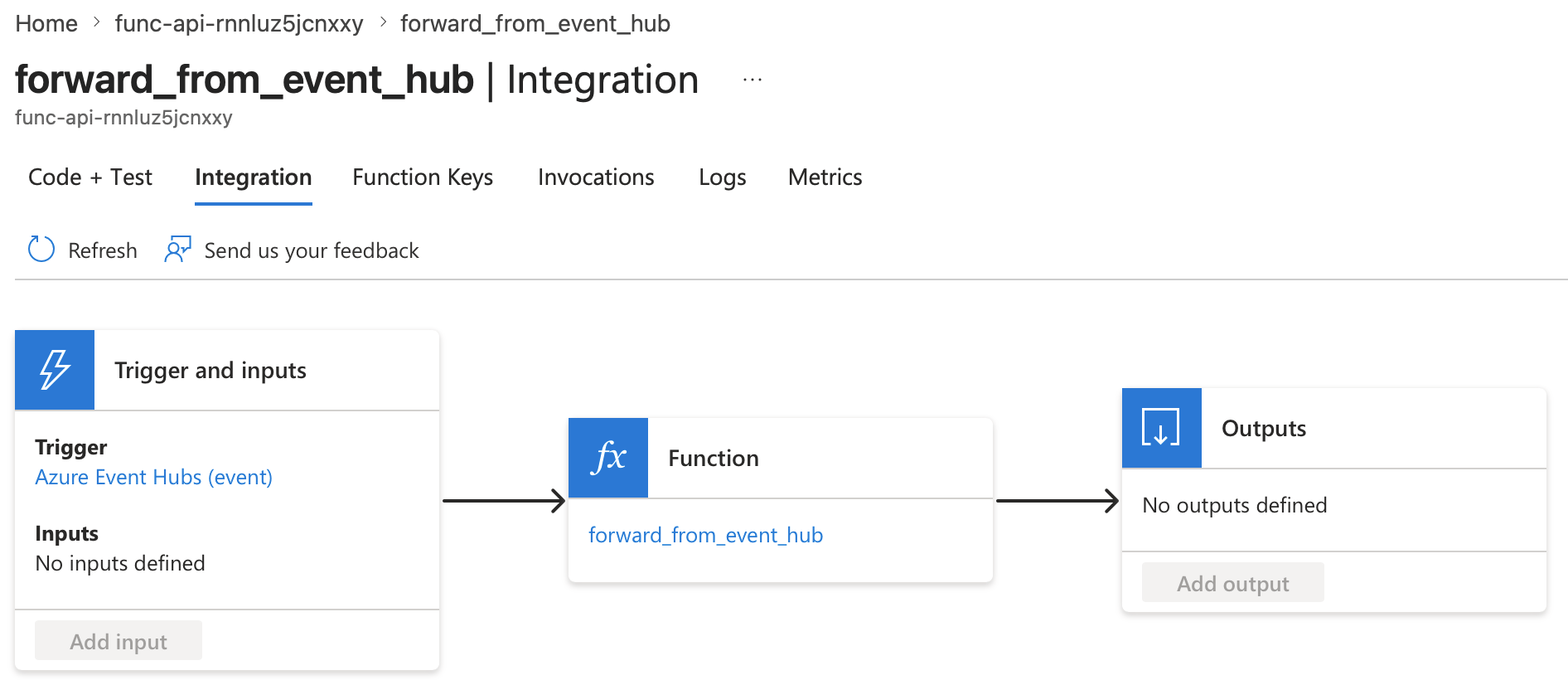
Once deployed, the function shows an **Azure Event Hubs (event)** trigger wired to your forwarder in the Function App's **Integration** view.
The Event Hub trigger unpacks each message's `records` array, converts them to spans, and exports them:
```python theme={null}
import json
import azure.functions as func
from opentelemetry.exporter.otlp.proto.http.trace_exporter import OTLPSpanExporter
from honeyhive.adapters.copilot_studio import copilot_studio_records_to_spans
app = func.FunctionApp()
exporter = OTLPSpanExporter() # reads OTEL_EXPORTER_OTLP_* settings
@app.function_name("forward_from_event_hub")
@app.event_hub_message_trigger(
arg_name="events",
event_hub_name="%EVENT_HUB_NAME%",
connection="EventHubConnection",
consumer_group="%EVENT_HUB_CONSUMER_GROUP%",
cardinality=func.Cardinality.MANY,
)
def forward_from_event_hub(events: list[func.EventHubEvent]) -> None:
records: list[dict[str, object]] = []
for event in events:
body = json.loads(event.get_body().decode("utf-8"))
records.extend(body.get("records", []))
spans = copilot_studio_records_to_spans(records)
if spans:
exporter.export(spans)
```
`copilot_studio_records_to_spans` accepts Azure Monitor diagnostic-export records and returns OpenTelemetry `ReadableSpan` objects, handling trace and session correlation. For batched export, swap the Event Hub trigger for a blob trigger that reads the archived records and passes the same `records` list to the adapter.
Add these dependencies to the project's `requirements.txt`:
```text theme={null}
honeyhive
azure-functions
opentelemetry-exporter-otlp-proto-http
```
Set the OTLP export settings and the Event Hub connection on the Function App.
```bash theme={null}
az functionapp config appsettings set \
--name \
--resource-group \
--settings \
OTEL_EXPORTER_OTLP_ENDPOINT=https://api.dp1.us.honeyhive.ai/opentelemetry \
"OTEL_EXPORTER_OTLP_HEADERS=authorization=Bearer " \
"EventHubConnection=" \
EVENT_HUB_NAME= \
EVENT_HUB_CONSUMER_GROUP='$Default'
```
**Always required:**
| Setting | Description |
| ----------------------------- | ------------------------------------------------------------------------------------------------------------------------------------------------------------------- |
| `OTEL_EXPORTER_OTLP_ENDPOINT` | Your HoneyHive data plane host with the `/opentelemetry` path (for example `https://api.dp1.us.honeyhive.ai/opentelemetry`). The HTTP exporter appends `/v1/traces` |
| `OTEL_EXPORTER_OTLP_HEADERS` | `authorization=Bearer ` |
**Event Hub trigger:**
| Setting | Description |
| -------------------------- | -------------------------------------------------- |
| `EventHubConnection` | Connection string for the Event Hub namespace |
| `EVENT_HUB_NAME` | Name of the Event Hub receiving diagnostic exports |
| `EVENT_HUB_CONSUMER_GROUP` | Consumer group; defaults to `$Default` |
```bash theme={null}
azd deploy
```
Once deployed, the function shows an **Azure Event Hubs (event)** trigger wired to your forwarder in the Function App's **Integration** view.
 ## Verify in HoneyHive
Chat with your Copilot Studio agent (the test canvas works) so it emits telemetry to Application Insights and through the diagnostic export.
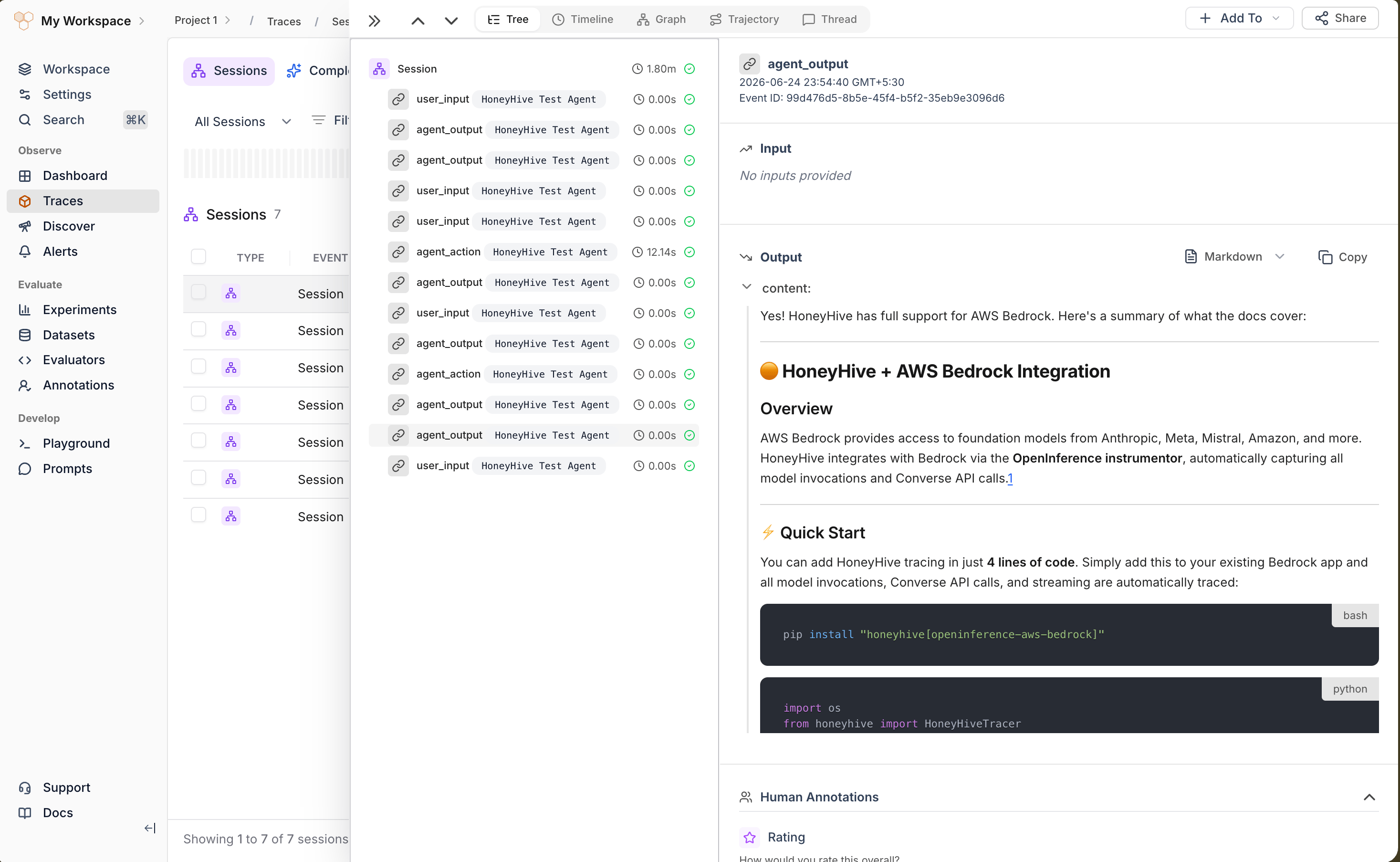
In [**Traces**](https://app.us.honeyhive.ai/traces/sessions), search for your agent name. Each conversation appears as one session, with `user_input`, `agent_output`, and any `agent_error` spans carrying the message content as inputs and outputs.
## Verify in HoneyHive
Chat with your Copilot Studio agent (the test canvas works) so it emits telemetry to Application Insights and through the diagnostic export.
In [**Traces**](https://app.us.honeyhive.ai/traces/sessions), search for your agent name. Each conversation appears as one session, with `user_input`, `agent_output`, and any `agent_error` spans carrying the message content as inputs and outputs.
 ## Optional settings
Set these as Function App application settings:
| Setting | Values | Default | Description |
| ----------------------------------------- | ------ | ------- | ------------------------------------------------------------------------------------------------------- |
| `COPILOT_STUDIO_ADAPTER_KEEP_TOPIC_SPANS` | `true` | off | Emit `TopicStart`, `TopicEnd`, `TopicAction`, and root spans as `agent_action` instead of dropping them |
| `COPILOT_STUDIO_ADAPTER_DEBUG` | `true` | off | Attach the raw source record as `debug.raw_record` on each span |
## Troubleshooting
| Symptom | Fix |
| -------------------------------------- | ------------------------------------------------------------------------------------------------------------------------------------------------------------------------------------------------------------------ |
| No traces in HoneyHive | Confirm `OTEL_EXPORTER_OTLP_ENDPOINT` and the `authorization=Bearer ` header are set on the Function App, and that the API key matches the target project |
| Function runs but emits no spans | Confirm the diagnostic export includes `AppEvents`, `AppRequests`, and `AppDependencies`. Other categories carry log signals, not span data, and are skipped |
| Spans arrive with empty inputs/outputs | Enable **Log conversation details** in Copilot Studio (**Settings > Advanced > Application Insights**). Without it, message `text` is not logged, so `BotMessageReceived` / `BotMessageSend` spans have no content |
| Too many empty orchestration spans | Topic and root spans are dropped by default. If you set `COPILOT_STUDIO_ADAPTER_KEEP_TOPIC_SPANS=1`, unset it to hide them again |
| Event Hub trigger not firing | Verify `EventHubConnection`, `EVENT_HUB_NAME`, and the consumer group, and that the diagnostic setting streams to that hub |
## Related
Forward workflow executions to HoneyHive from an external shipper
Instrument code-first Semantic Kernel agents
Sessions, event types, and trace hierarchy
Add metadata, user properties, and feedback
## Resources
* [Microsoft Copilot Studio documentation](https://learn.microsoft.com/microsoft-copilot-studio/)
* [Analyze Copilot Studio telemetry with Application Insights](https://learn.microsoft.com/microsoft-copilot-studio/advanced-bot-framework-composer-capture-telemetry)
* [Azure Monitor diagnostic settings](https://learn.microsoft.com/azure/azure-monitor/essentials/diagnostic-settings)
* [Azure Functions Python developer guide](https://learn.microsoft.com/azure/azure-functions/functions-reference-python)
## Optional settings
Set these as Function App application settings:
| Setting | Values | Default | Description |
| ----------------------------------------- | ------ | ------- | ------------------------------------------------------------------------------------------------------- |
| `COPILOT_STUDIO_ADAPTER_KEEP_TOPIC_SPANS` | `true` | off | Emit `TopicStart`, `TopicEnd`, `TopicAction`, and root spans as `agent_action` instead of dropping them |
| `COPILOT_STUDIO_ADAPTER_DEBUG` | `true` | off | Attach the raw source record as `debug.raw_record` on each span |
## Troubleshooting
| Symptom | Fix |
| -------------------------------------- | ------------------------------------------------------------------------------------------------------------------------------------------------------------------------------------------------------------------ |
| No traces in HoneyHive | Confirm `OTEL_EXPORTER_OTLP_ENDPOINT` and the `authorization=Bearer ` header are set on the Function App, and that the API key matches the target project |
| Function runs but emits no spans | Confirm the diagnostic export includes `AppEvents`, `AppRequests`, and `AppDependencies`. Other categories carry log signals, not span data, and are skipped |
| Spans arrive with empty inputs/outputs | Enable **Log conversation details** in Copilot Studio (**Settings > Advanced > Application Insights**). Without it, message `text` is not logged, so `BotMessageReceived` / `BotMessageSend` spans have no content |
| Too many empty orchestration spans | Topic and root spans are dropped by default. If you set `COPILOT_STUDIO_ADAPTER_KEEP_TOPIC_SPANS=1`, unset it to hide them again |
| Event Hub trigger not firing | Verify `EventHubConnection`, `EVENT_HUB_NAME`, and the consumer group, and that the diagnostic setting streams to that hub |
## Related
Forward workflow executions to HoneyHive from an external shipper
Instrument code-first Semantic Kernel agents
Sessions, event types, and trace hierarchy
Add metadata, user properties, and feedback
## Resources
* [Microsoft Copilot Studio documentation](https://learn.microsoft.com/microsoft-copilot-studio/)
* [Analyze Copilot Studio telemetry with Application Insights](https://learn.microsoft.com/microsoft-copilot-studio/advanced-bot-framework-composer-capture-telemetry)
* [Azure Monitor diagnostic settings](https://learn.microsoft.com/azure/azure-monitor/essentials/diagnostic-settings)
* [Azure Functions Python developer guide](https://learn.microsoft.com/azure/azure-functions/functions-reference-python)