> ## Documentation Index
> Fetch the complete documentation index at: https://docs.honeyhive.ai/llms.txt
> Use this file to discover all available pages before exploring further.
# How to integrate HoneyHive with TrueFoundry
> Integrate HoneyHive with TrueFoundry AI Gateway to export OTLP/HTTP traces. Route gateway spans to HoneyHive for unified observability across model providers.
[TrueFoundry AI Gateway](https://www.truefoundry.com/ai-gateway) can export OpenTelemetry traces for LLM gateway traffic. [HoneyHive](https://www.honeyhive.ai/) ingests OTLP/HTTP traces directly, so requests routed through TrueFoundry can appear in HoneyHive without adding HoneyHive SDK code to each application.
## Quick Start
**Trace AI Gateway traffic with no SDK code in your application.** Point TrueFoundry's OTEL exporter at HoneyHive and gateway requests start appearing in the Traces tab.
## Prerequisites
* Admin access to your TrueFoundry AI Gateway settings
* A HoneyHive API key from [**Settings → Project → API Keys**](https://app.us.honeyhive.ai/settings/project/keys)
## Provider host and OTLP traces URL
HoneyHive routes OTLP ingestion through your deployment's **API host**. Replace `` with the hostname shown in your HoneyHive dashboard or API settings:
```text theme={null}
https:///opentelemetry/v1/traces
```
Example for a US production deployment:
```text theme={null}
https://api.dp1.us.prod.honeyhive.ai/opentelemetry/v1/traces
```
Use the exact host for your org and environment. If ingest fails, confirm the hostname matches the region where your project lives.
## Configure TrueFoundry
In HoneyHive, open [**Settings → Project → API Keys**](https://app.us.honeyhive.ai/settings/project/keys), create an API key, and copy it. The key determines which HoneyHive project receives traces.
In TrueFoundry, go to [**AI Gateway → Controls → Settings**](https://www.truefoundry.com/docs/ai-gateway/export-opentelemetry-data), then edit **OTEL Config**.
Enable **Otel Traces Exporter Configuration**, select **HTTP Configuration**, and set:
| Field | Value |
| -------- | ------------------------------------------------- |
| Endpoint | `https:///opentelemetry/v1/traces` |
| Encoding | `Json` |
Enable headers and add:
| Header | Value |
| --------------- | --------------------- |
| `Authorization` | `Bearer ` |
Replace `` with the project API key from HoneyHive.
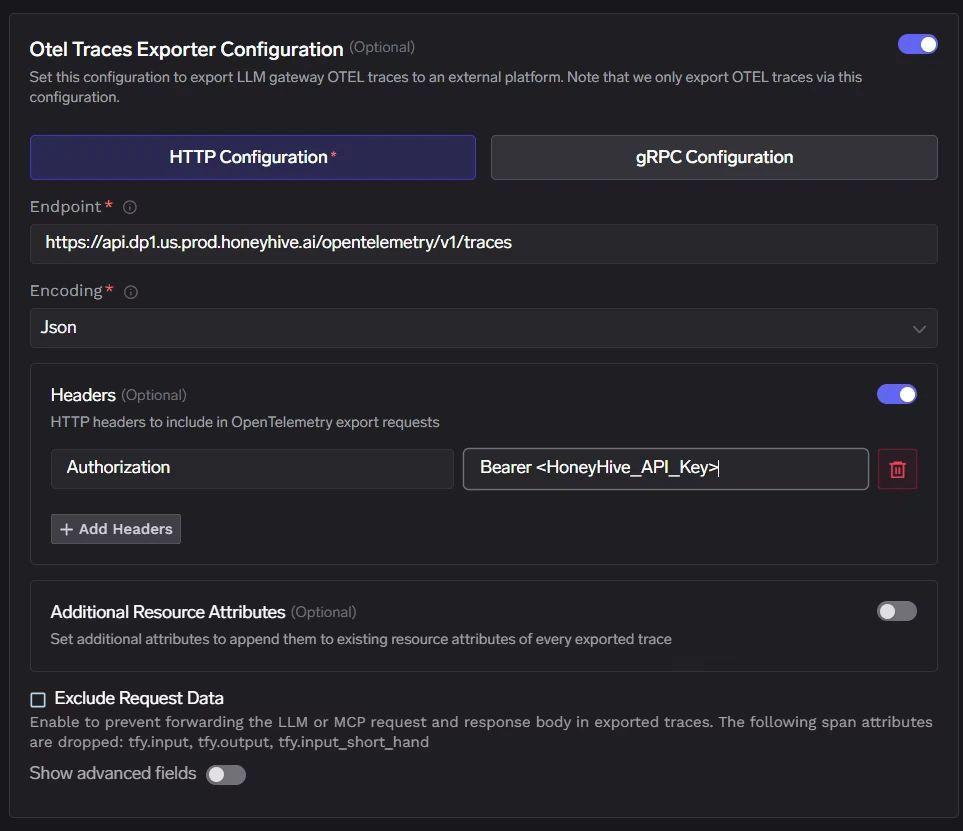 Save the TrueFoundry OTEL configuration, then send a few requests through the AI Gateway.
## Verify traces in HoneyHive
Open HoneyHive and go to the **Traces** tab for the project tied to your API key. New gateway spans appear with `source` set to `otlp`.
Save the TrueFoundry OTEL configuration, then send a few requests through the AI Gateway.
## Verify traces in HoneyHive
Open HoneyHive and go to the **Traces** tab for the project tied to your API key. New gateway spans appear with `source` set to `otlp`.
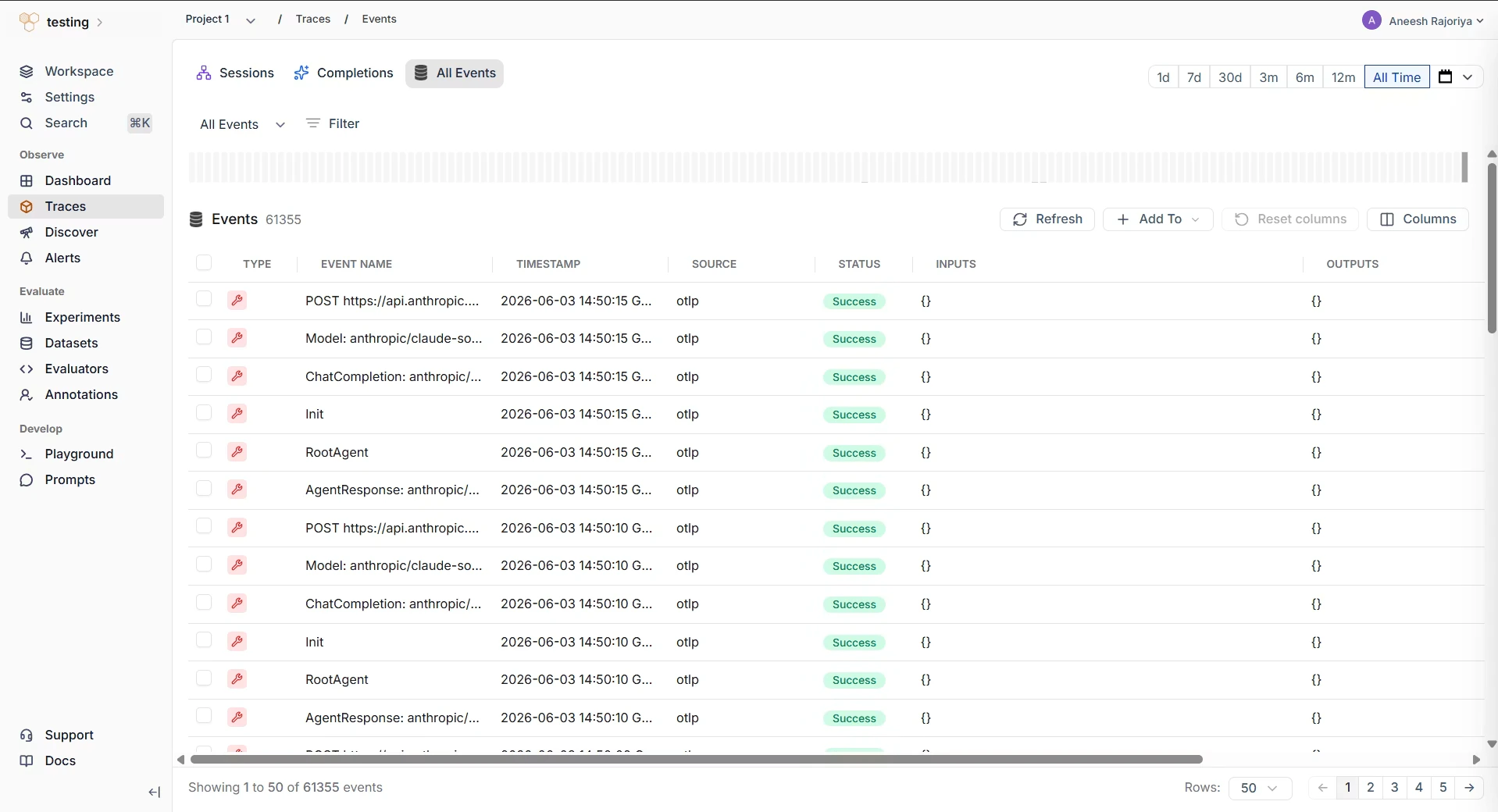 If traces do not appear:
1. Confirm the TrueFoundry endpoint uses your HoneyHive API host and ends with `/opentelemetry/v1/traces`.
2. Confirm the header is exactly `Authorization: Bearer `.
3. Confirm the API key was created in the HoneyHive project where you expect the traces to appear.
4. Check that your gateway can reach the HoneyHive API host over outbound HTTPS.
## Configuration reference
| Setting | Value |
| --------------- | ------------------------------------------------- |
| Protocol | OTLP/HTTP |
| Traces endpoint | `https:///opentelemetry/v1/traces` |
| Encoding | `Json` |
| Auth header | `Authorization: Bearer ` |
## Related
Learn how HoneyHive stores OTLP traces and AI span attributes
Connect gateway spans with application spans across services
Add HoneyHive spans around business logic in your application
## Resources
* [TrueFoundry HoneyHive guide](https://www.truefoundry.com/docs/ai-gateway/honeyhive)
* [TrueFoundry AI Gateway documentation](https://www.truefoundry.com/docs/ai-gateway/intro-to-llm-gateway)
If traces do not appear:
1. Confirm the TrueFoundry endpoint uses your HoneyHive API host and ends with `/opentelemetry/v1/traces`.
2. Confirm the header is exactly `Authorization: Bearer `.
3. Confirm the API key was created in the HoneyHive project where you expect the traces to appear.
4. Check that your gateway can reach the HoneyHive API host over outbound HTTPS.
## Configuration reference
| Setting | Value |
| --------------- | ------------------------------------------------- |
| Protocol | OTLP/HTTP |
| Traces endpoint | `https:///opentelemetry/v1/traces` |
| Encoding | `Json` |
| Auth header | `Authorization: Bearer ` |
## Related
Learn how HoneyHive stores OTLP traces and AI span attributes
Connect gateway spans with application spans across services
Add HoneyHive spans around business logic in your application
## Resources
* [TrueFoundry HoneyHive guide](https://www.truefoundry.com/docs/ai-gateway/honeyhive)
* [TrueFoundry AI Gateway documentation](https://www.truefoundry.com/docs/ai-gateway/intro-to-llm-gateway)