

Why Curate from Traces?
Curate Sessions
Add complete user interactions (sessions) to your dataset.1
Filter sessions
Go to Traces → Sessions and apply filters to find relevant sessions. Common filters:
- Date range for recent production data
- Evaluator scores (e.g., low relevance scores)
- User feedback (thumbs down)
- Metadata fields (environment, user segment)
2
Select sessions
Check the sessions you want to add to your dataset. You can select multiple sessions at once.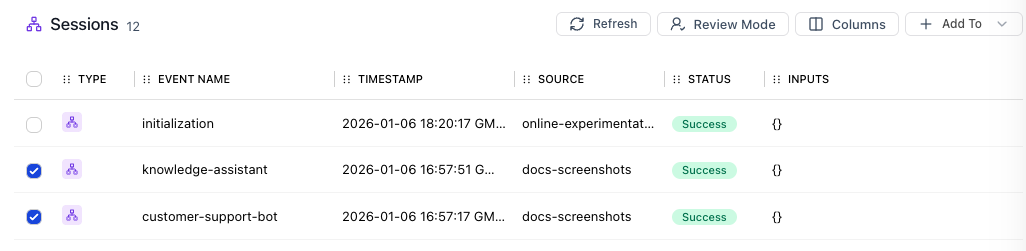
3
Add to dataset
Click Add to Dataset and choose an existing dataset or create a new one. The session’s inputs and outputs are automatically mapped to datapoint fields.
Curate Model Events
Add specific LLM calls (model events) rather than full sessions. Useful when your pipeline has multiple LLM calls and you want to evaluate a specific one.1
Go to Completions tab
Navigate to Traces → Completions to see all model events across sessions.
2
Filter model events
Filter by model name, token usage, latency, or evaluator scores to find relevant completions.
3
Select and add
Select the model events you want and click Add to Dataset. The model’s input prompt and output response are mapped to datapoint fields.
Curate Specific Spans
Add any span in your trace (tool calls, chain steps, etc.) to a dataset.1
Open session detail
Click on a session to open the detail view showing the full span tree.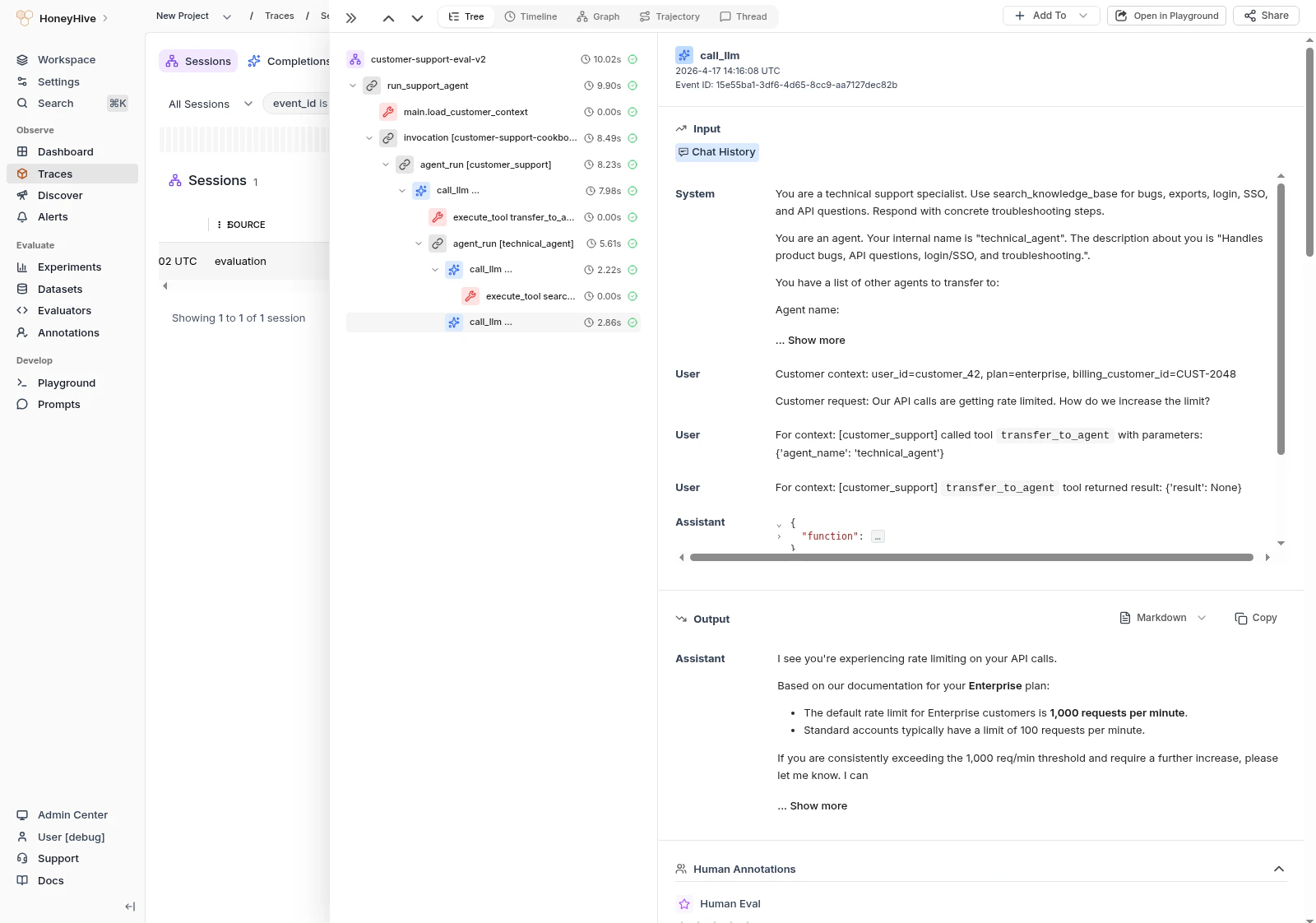
2
Select span
Click on the specific span you want to curate (e.g., a retrieval step, tool call, or chain).
3
Add to dataset
Click + Add To → Add to Dataset from the top action bar, or right-click the span for the context menu option.
Best Practices
Next Steps
Run with HoneyHive Datasets
Evaluate your application using curated datasets
Upload Datasets
Import datasets from external files