

- Experiment with prompt templates and model configurations
- Test prompts against sample inputs before deploying
- Save working versions for use in your application
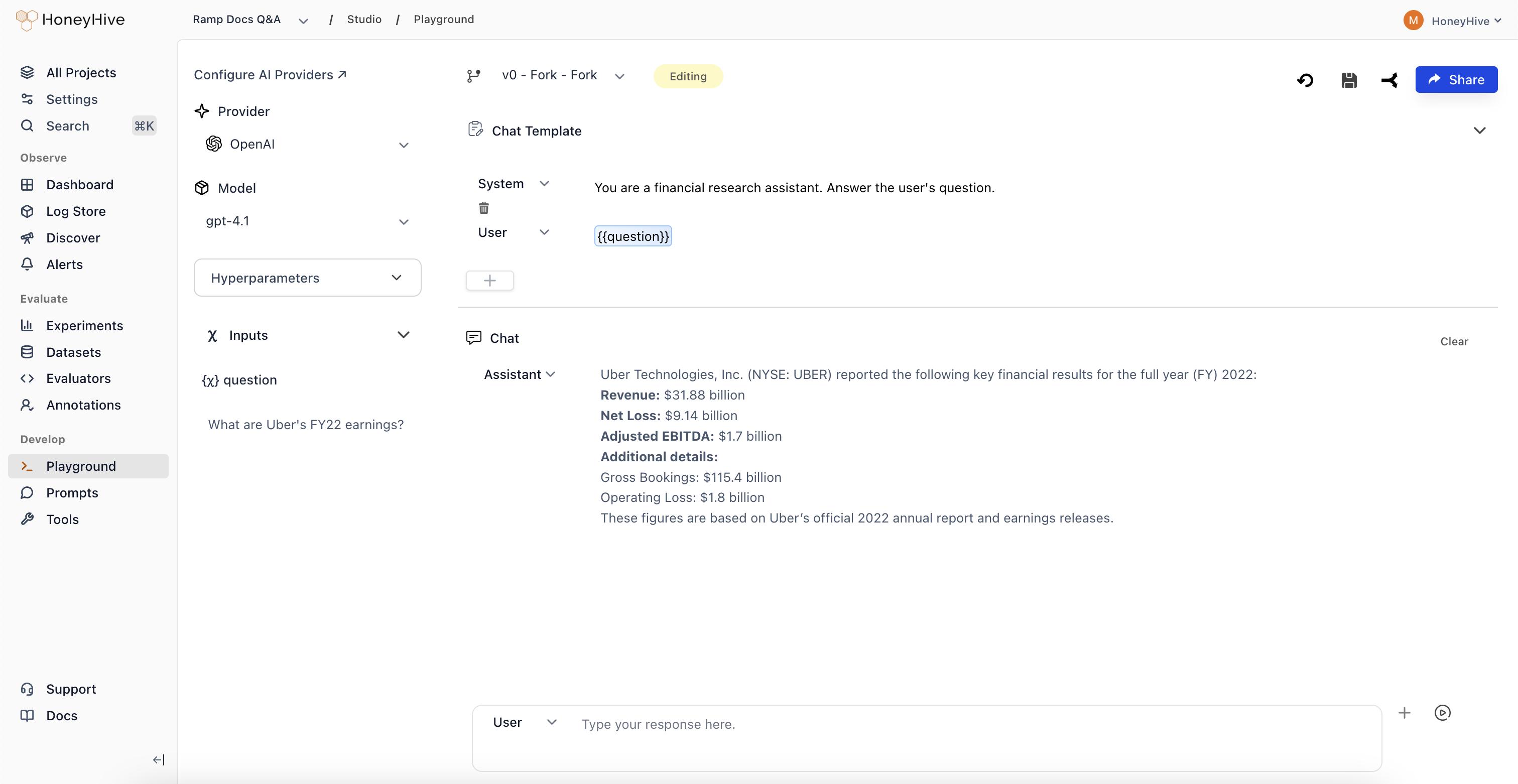
Playground interface showing prompt template, model selection, and test output
Prerequisites
Before using the Playground, configure your model provider API keys in Settings > AI Provider Secrets.Creating a Prompt
- Navigate to Studio > Playground in the sidebar
- Select a Provider and Model in the left panel
- Write your prompt template in the Chat Template section
- Use
{{variable}}syntax for dynamic inputs (e.g.,{{question}}) - Add sample values in the Inputs panel
- Click Run to test the prompt
Template Variables
Use{{variable_name}} syntax in your prompt template to create dynamic inputs. When you add a variable, an input field appears in the Inputs panel on the left where you can set sample values for testing.
Variables are replaced with actual values at runtime when you fetch prompts in your code.
Hyperparameters
Expand the Hyperparameters panel in the left sidebar to configure model parameters:For OpenAI reasoning models (o1 series and similar), temperature, top_p, presence_penalty, and frequency_penalty are fixed and cannot be adjusted.
Response Format
For OpenAI models that support JSON mode, you can set the response format to:- Text: Default. Free-form text response.
- JSON: Forces the model to output valid JSON. Useful when you need structured output for downstream processing.
The response format option appears in the Hyperparameters panel when a compatible OpenAI model is selected.
Multi-Turn Conversations
The Playground supports multi-turn chat. After running a prompt:- The model’s response appears in the Conversation panel
- Type a follow-up message and click Run again
- The full conversation history is sent with each request
Saving and Forking
Prompts are saved as configurations - each configuration is a single record that you can update or fork.To preserve a working prompt before experimenting, use Fork first. Saving an existing configuration overwrites it.
- Click Save in the top toolbar
- Enter a configuration name (e.g.,
v1-production) - The saved configuration appears in Studio > Prompts
- Click Fork to create a copy
- Make your changes
- Save the forked version with a new name
Managing Saved Prompts
View all saved prompts in Studio > Prompts: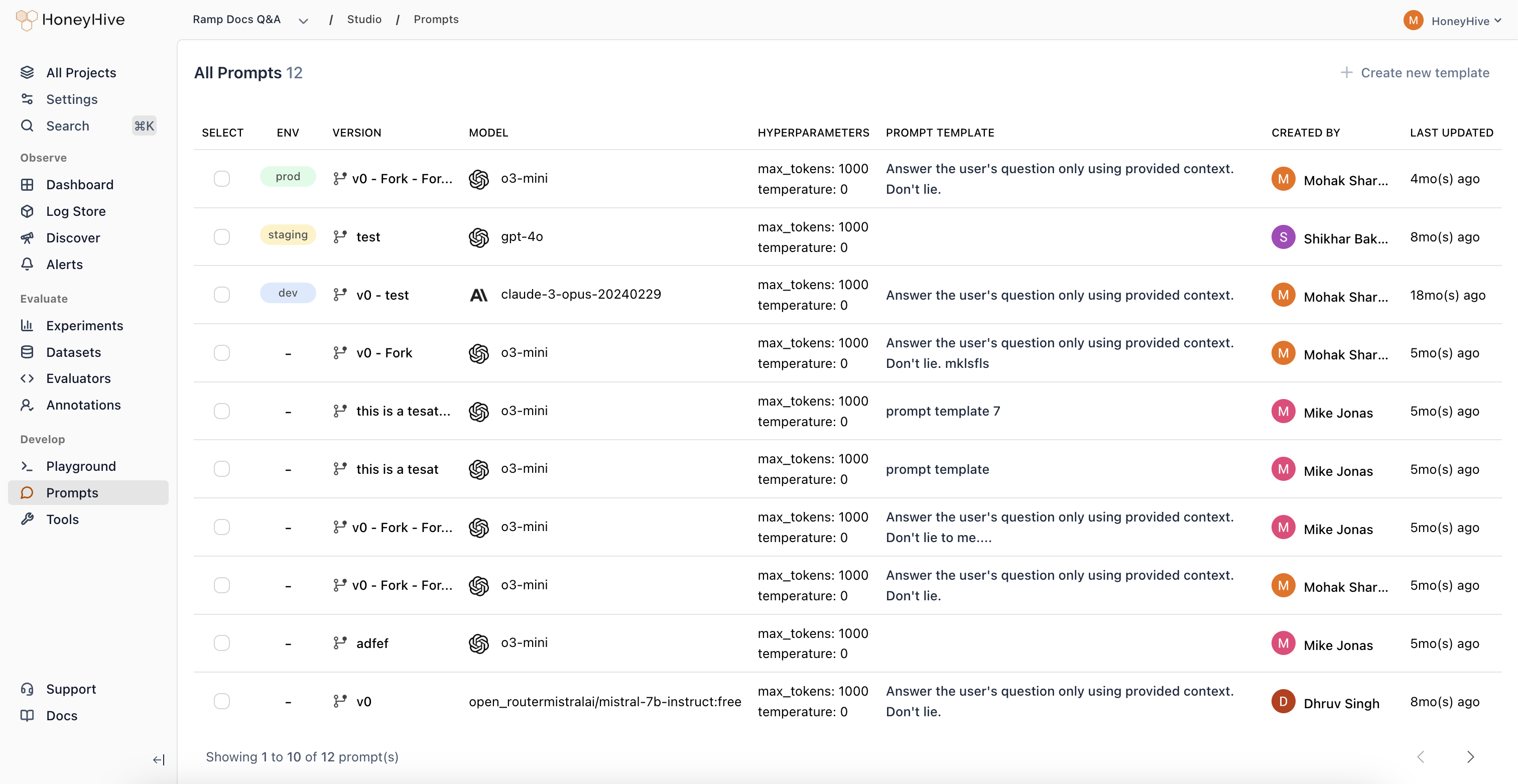
Prompts list showing saved versions with deployment environment, model, and template preview
- Deploy a prompt to an environment (dev, staging, prod)
- Edit a prompt by opening it in the Playground
- Compare different versions side-by-side
Opening Prompts from Traces
When debugging production issues, you can open any traced LLM call in the Playground:- Go to Traces and find the trace
- Click on a model event
- Click Open in Playground in the top right
Sharing
To share a prompt with teammates:- Save the prompt first
- Click Share in the top right
- Copy the link
Next Steps
Deploy Prompts to Code
Fetch saved prompts in your application via SDK or YAML export.
Run Evaluations
Test prompt performance systematically with experiments.