

Before you start: Create Human Evaluators to define what fields your team will annotate (quality ratings, categories, feedback notes, etc.). Annotation queues organize which events to review; human evaluators define what to assess.
When to Use Annotation Queues
Annotation queues are particularly useful for:- Quality Assurance - Route low-confidence predictions or edge cases for human review
- Active Learning - Identify and label examples where your model is uncertain
- Compliance Review - Flag sensitive or regulated content for manual verification
- Training Data Curation - Collect and label examples to improve your datasets
- Performance Monitoring - Sample production traffic for ongoing quality assessment
Creating Annotation Queues
Choose your approach based on your workflow:Manual Selection
Create a queue from specific events you’ve already identified. The Traces page provides three views for finding events: Sessions (complete traces), Completions (individual LLM calls), or All Events (every span).- Navigate to Traces in your project
- Apply filters to identify the events you want to review
- Select the events you want to include (or select all matching events)
- Click the Add to dropdown menu
- Select Add to Queue
Automated Rules
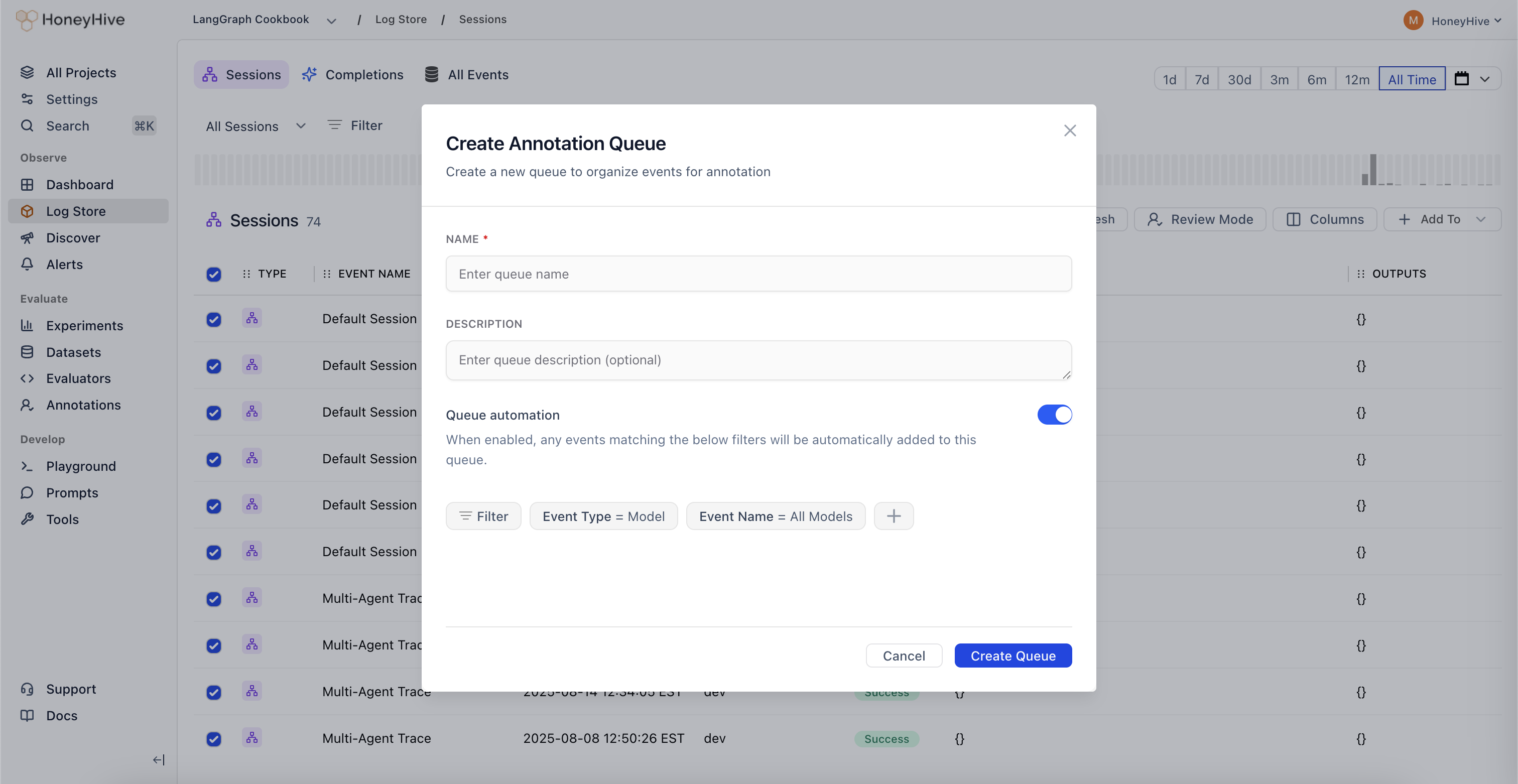
Set up a queue that continuously captures matching events as they arrive: Option 1: From Traces- Follow the manual selection steps above
- After applying your filters, toggle the Queue automation checkbox when creating the queue
- Your filters will be saved as automation rules
- Navigate to the Annotations tab in your project
- Click Create Queue
- Set up your filter criteria to define which events should be automatically added
- Toggle the Queue automation checkbox
- Save your queue configuration
- New events matching your filters are automatically added in real-time
- You can edit filters and automation settings anytime by clicking on the queue
- Disable automation to pause capturing events without deleting the queue
Common Filter Criteria
Filters determine which events are added to your queue. Common criteria include:- Event type - Sessions, completions, tool calls, chains
- Evaluator scores -
metrics.accuracy < 0.7ormetrics.toxicity > 0.5 - Metadata fields -
metadata.environment = "production",metadata.user_tier = "enterprise" - User feedback -
feedback.rating < 3orfeedback.helpful = false - Date ranges - Last 7 days, specific time windows
- Performance -
duration > 5000,cost > 0.10
Reviewing and Annotating Events
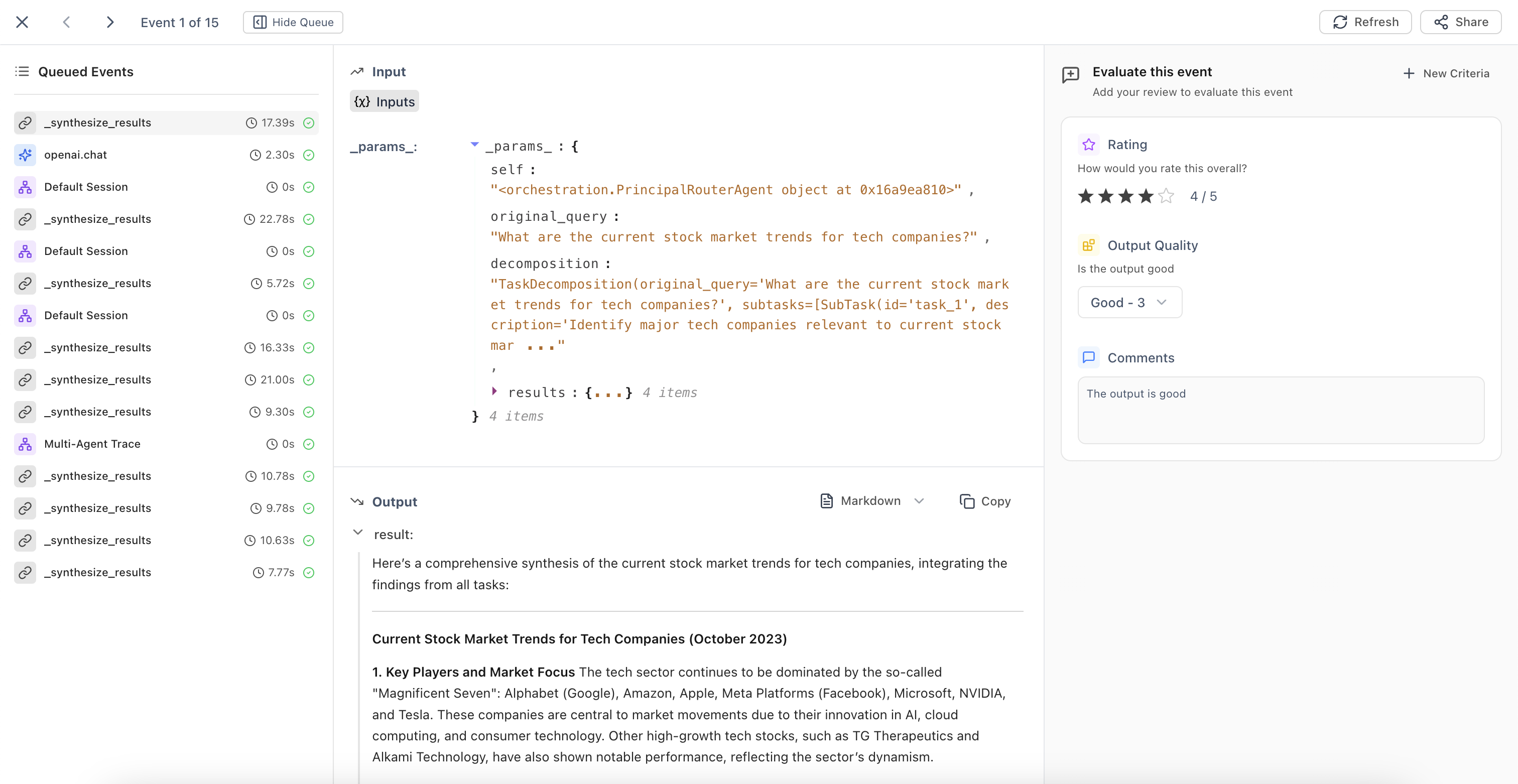
Once events are in a queue:- Navigate to the Annotations tab in your project
- Click on a queue to open Review Mode
- For each event, view the inputs and outputs, then fill in the annotation fields defined by your human evaluators
- Navigate between events:
- Right arrow (
→) for next event - Left arrow (
←) for previous event Enterto save current annotations and advance
- Right arrow (
Managing Queues
Editing Queue Settings
Click on a queue to:- Update the queue name and description
- Modify filter criteria (affects future auto-additions)
- Enable or disable automation
Related
Human Evaluators
Create annotation fields before setting up queues
Query Trace Data
Learn about available filters for queue automation
Explore in UI
Navigate Traces to select events manually
Experiments Framework
Understand how human evaluation fits in the evaluation workflow