

- Experiment with prompt templates and model configurations
- Test prompts against sample inputs before deploying
- Save working versions for use in your application
Prerequisites
Before using the Playground, configure your model provider API keys in Settings > AI Provider Secrets.Creating a Prompt
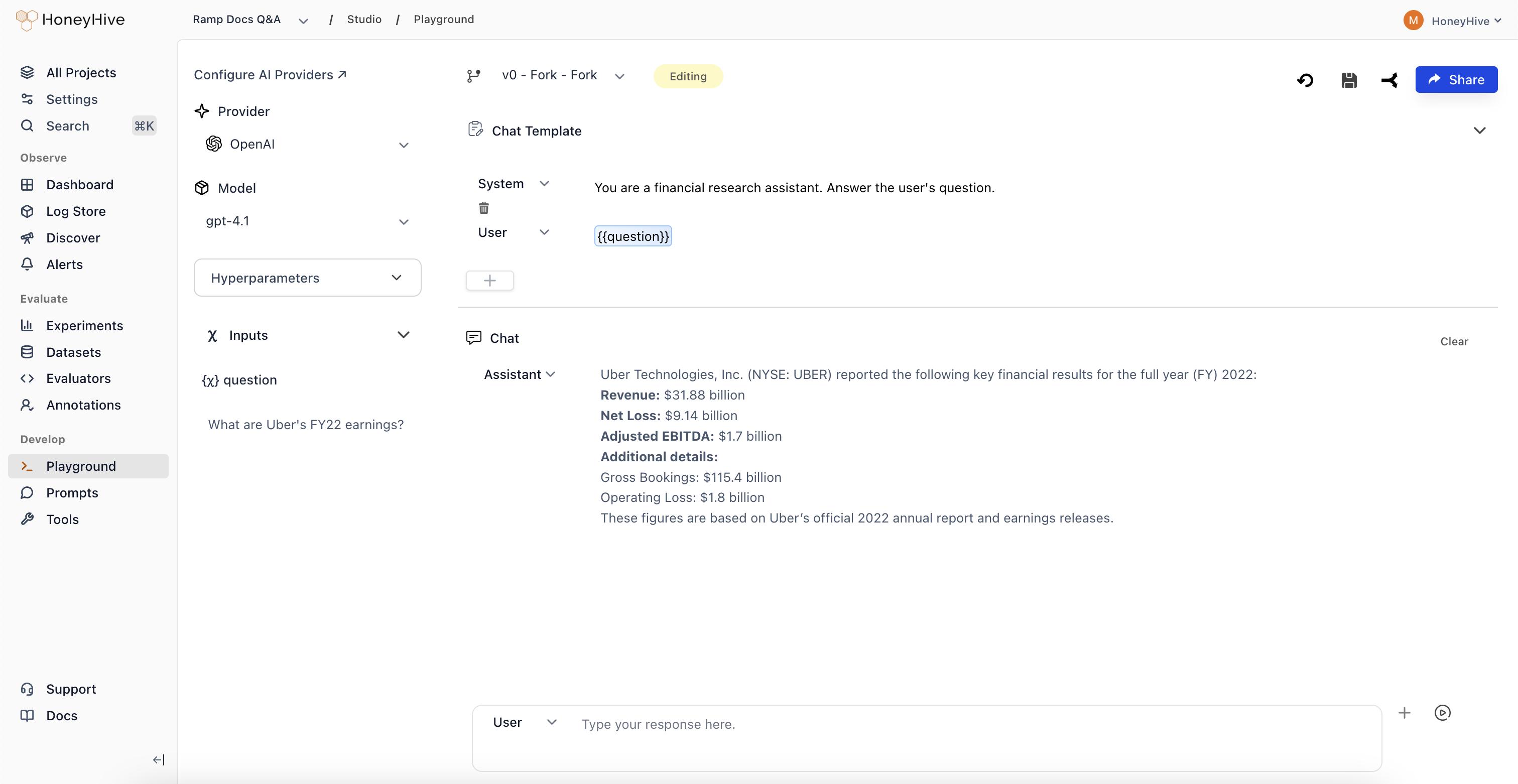
- Navigate to Studio > Playground in the sidebar
- Select a Provider and Model in the left panel
- Write your prompt template in the Chat Template section
- Use
{{variable}}syntax for dynamic inputs (e.g.,{{question}}) - Add sample values in the Inputs panel
- Click Run to test the prompt
Dynamic variables like
{{question}} let you insert user inputs or context from your application at runtime.Saving and Forking
Prompts are saved as configurations - each configuration is a single record that you can update or fork.| Action | What Happens |
|---|---|
| Save (new prompt) | Creates a new configuration with your chosen name |
| Save (existing prompt) | Overwrites the existing configuration |
| Fork | Creates a copy, preserving the original |
To preserve a working prompt before experimenting, use Fork first. Saving an existing configuration overwrites it.
- Click Save in the top toolbar
- Enter a configuration name (e.g.,
v1-production) - The saved configuration appears in Studio > Prompts
- Click Fork to create a copy
- Make your changes
- Save the forked version with a new name
Managing Saved Prompts
View all saved prompts in Studio > Prompts: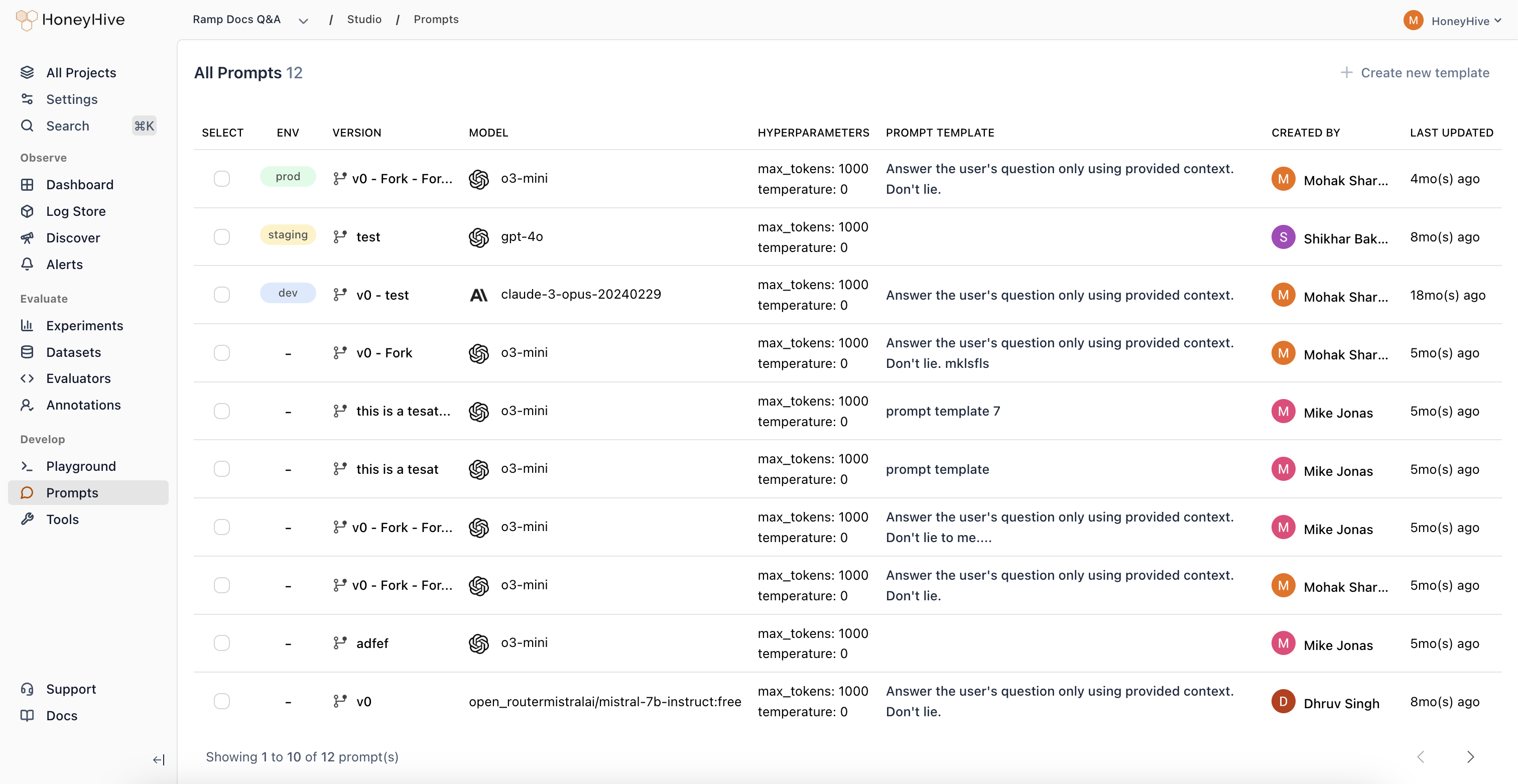
- Deploy a prompt to an environment (dev, staging, prod)
- Edit a prompt by opening it in the Playground
- Compare different versions side-by-side
Opening Prompts from Traces
When debugging production issues, you can open any traced LLM call in the Playground:- Go to Log Store and find the trace
- Click on a model event
- Click Open in Playground in the top right
Sharing
To share a prompt with teammates:- Save the prompt first
- Click Share in the top right
- Copy the link