

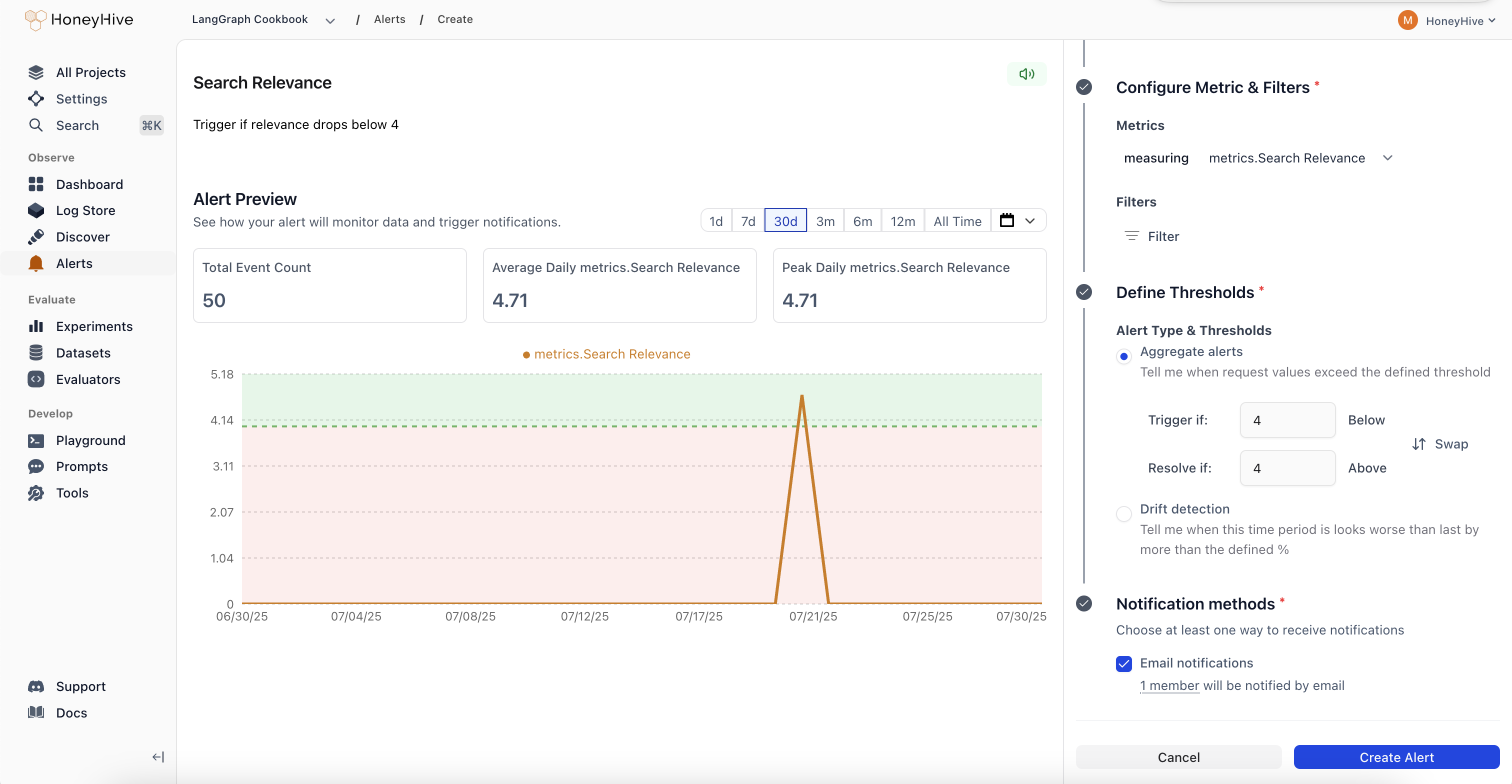
Create an Alert
Name and describe your alert
Give your alert a clear name and description so your team knows what it monitors.
Choose monitoring frequency
Select how often to evaluate your alert:
- Hourly: Checked every hour for immediate detection
- Daily: Checked every hour but evaluated over daily periods
- Weekly: Checked daily but evaluated over weekly periods
- Monthly: Checked daily but evaluated over monthly periods
Select what to monitor
Event Type: Choose the data source for your alert
- Models: Individual LLM API calls and completions
- Sessions: Complete user conversations or workflows
- Tools: Function calls and external integrations
- Chains: Multi-step workflows and complex pipelines
- Filter by event name, tenant, or any custom metadata
- Example: Only monitor production traffic or specific model versions
Define the metric and aggregation
Metric: What to measure (latency, error rate, custom evaluator scores, etc.)Aggregation: How to summarize the data
- COUNT: Total number of events
- AVERAGE: Mean value across events
- P90/P95/P99: Percentile values for performance monitoring
- SUM: Total of all values
- MIN/MAX: Extreme values
- MEDIAN: Middle value
Set alert thresholds
Alert Type: Choose between aggregate alerts (absolute thresholds) or drift alerts (relative change detection)Trigger Threshold: The value that triggers the alert
- Aggregate example: “Average latency > 2 seconds”
- Drift example: “25% worse than previous period”