

Quick Start
Prerequisites
- Admin access to your TrueFoundry AI Gateway settings
- A HoneyHive ingestion API key from Settings → Project → API Keys, on the Ingestion tab
Provider host and OTLP traces URL
HoneyHive routes OTLP ingestion through your deployment’s API host. Replace<provider-host> with the hostname shown in your HoneyHive dashboard or API settings:
Configure TrueFoundry
1
Create a HoneyHive ingestion API key
In HoneyHive, open Settings → Project → API Keys, click Create API Key on the Ingestion tab, and copy the key. The key determines which HoneyHive project receives traces, and an ingestion key can do nothing else.
2
Open the TrueFoundry OTEL settings
In TrueFoundry, go to AI Gateway → Controls → Settings, then edit OTEL Config.
3
Enable HTTP trace export
Enable Otel Traces Exporter Configuration, select HTTP Configuration, and set:
4
Add the HoneyHive authorization header
Enable headers and add:
Replace
<HH_INGESTION_API_KEY> with the ingestion API key from HoneyHive.5
Save and send gateway traffic
Save the TrueFoundry OTEL configuration, then send a few requests through the AI Gateway.
Verify traces in HoneyHive
Open HoneyHive and go to the Traces tab for the project tied to your API key. New gateway spans appear withsource set to otlp.
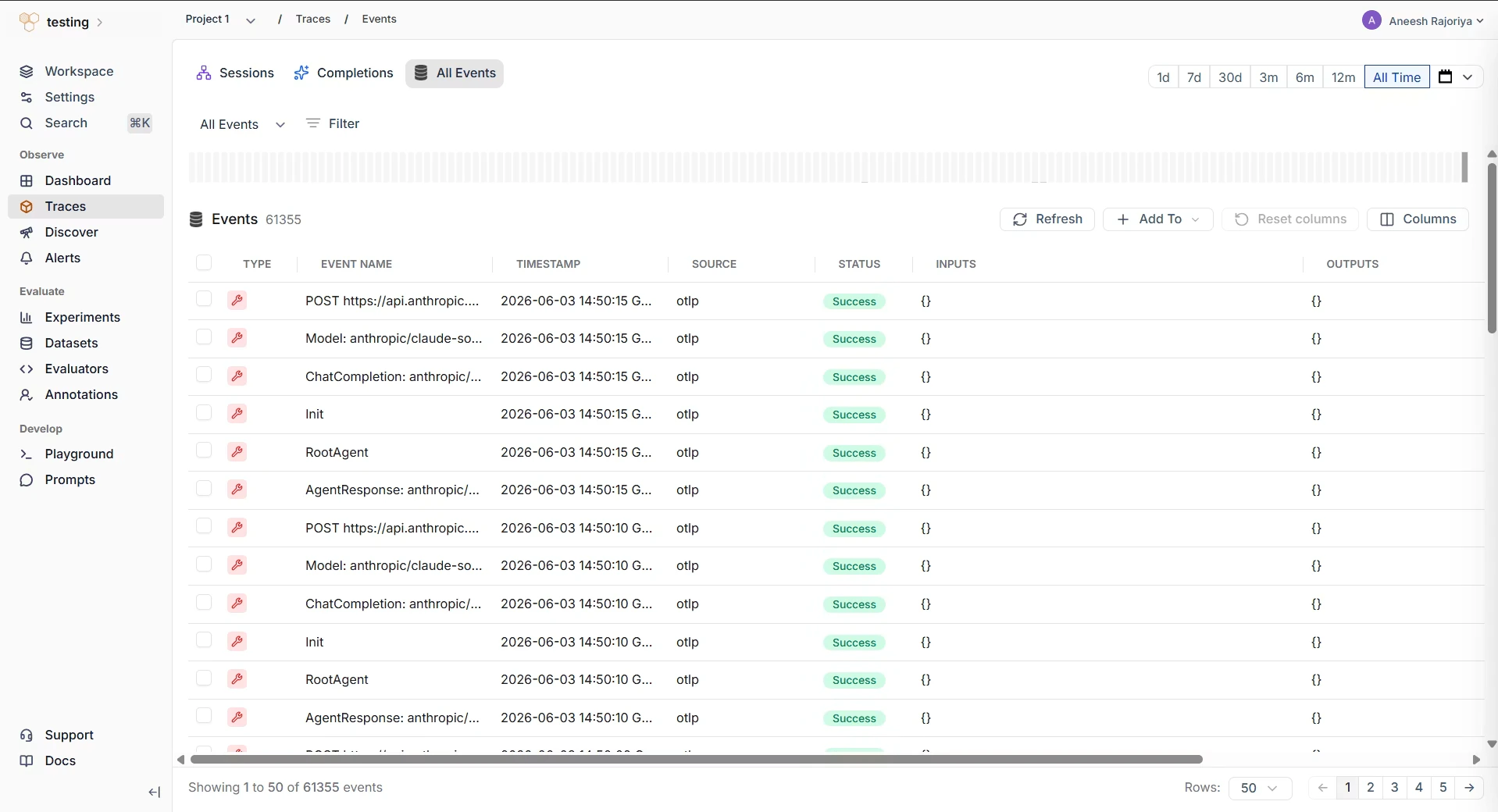
- Confirm the TrueFoundry endpoint uses your HoneyHive API host and ends with
/opentelemetry/v1/traces. - Confirm the header is exactly
Authorization: Bearer <HH_INGESTION_API_KEY>. - Confirm the API key was created in the HoneyHive project where you expect the traces to appear.
- Check that your gateway can reach the HoneyHive API host over outbound HTTPS.
Configuration reference
Related
OpenTelemetry concepts
Learn how HoneyHive stores OTLP traces and AI span attributes
Distributed tracing
Connect gateway spans with application spans across services
Custom spans
Add HoneyHive spans around business logic in your application