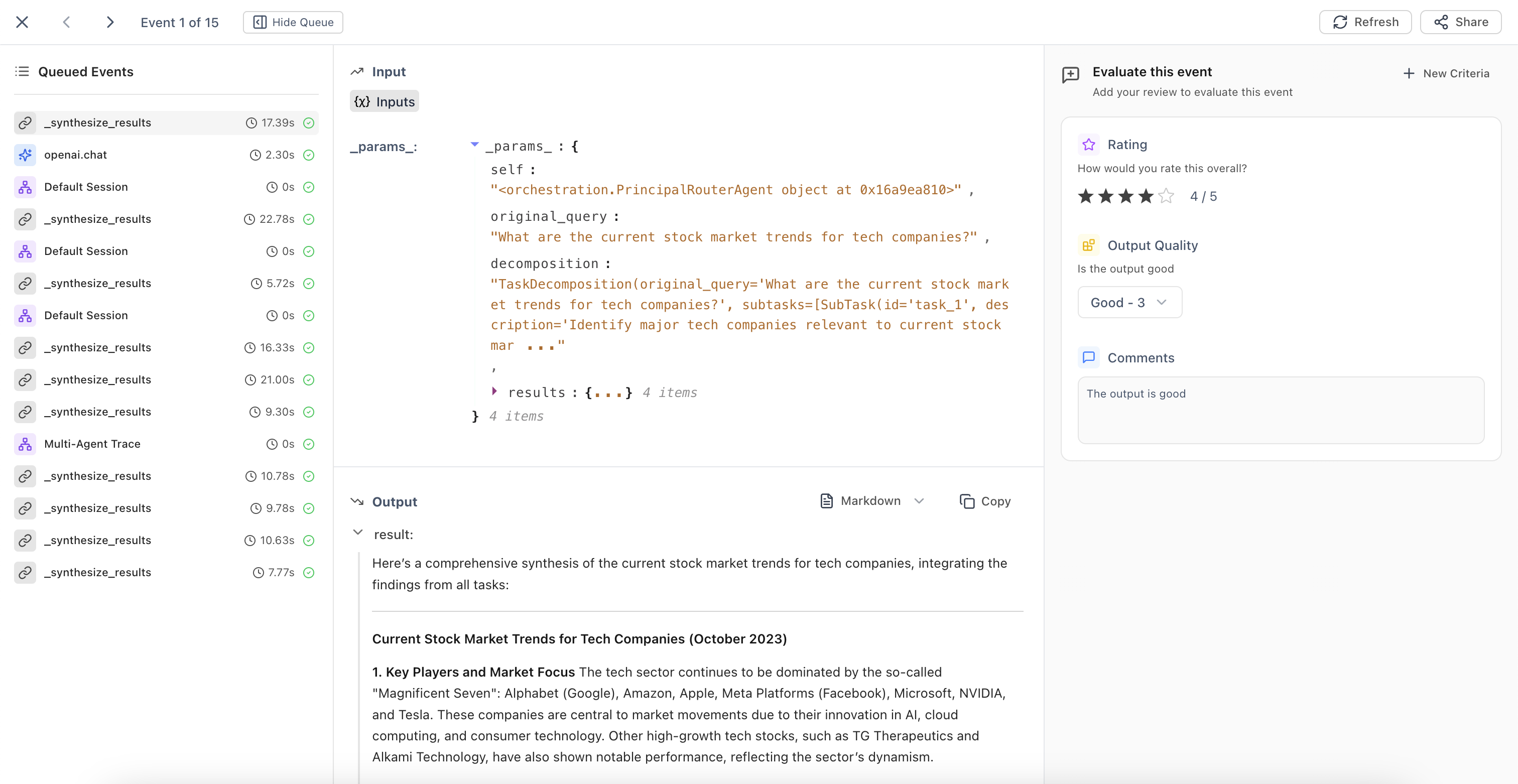
Human evaluators enable domain experts to manually assess AI outputs. Unlike Python or LLM evaluators that run automatically, human evaluators create annotation fields that team members fill in during review.
When to use human evaluators:
- Quality assessment requiring domain expertise
- Edge cases that automated evaluators can’t handle
- Building ground truth datasets
- Compliance and safety reviews
Creating a Human Evaluator
- Navigate to the Evaluators tab
- Click Add Evaluator and select Human Evaluator
Configuration
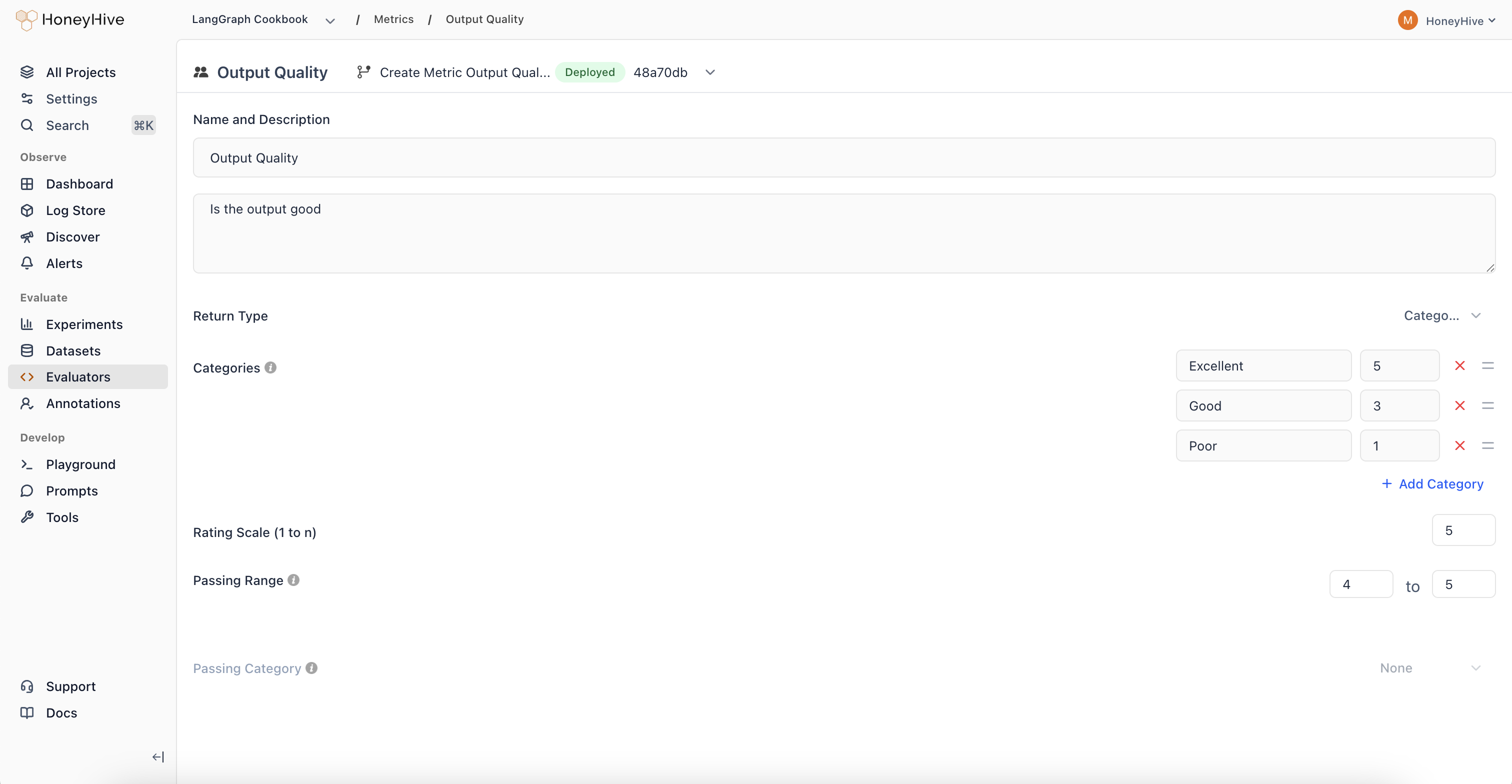
Name and Description
The Description field defines evaluation criteria for annotators. Keep it concise and actionable:
Rate the response quality:
- Accuracy: Is the information factually correct?
- Completeness: Does it fully address the question?
- Clarity: Is it easy to understand?
Write criteria as questions annotators can answer while reviewing. Avoid lengthy rubrics - link to external guidelines if needed.
Return Type
| Return Type | Use Case | UI Component |
|---|
| Numeric | Ratings on a scale (1-5 stars) | Star rating |
| Binary | Yes/no assessments | Thumbs up/down |
| Categorical | Predefined categories with optional scores | Dropdown menu |
| Notes | Free-form text feedback | Text input |
Rating Scale
For Numeric and Categorical types, set the scale range (e.g., 1-5). For Categorical, assign numeric values to each category to enable aggregation.
Passing Range
Define which scores indicate acceptable quality. Results outside this range are flagged for review.
Using Human Evaluators
Once created, human evaluators appear in:
- Trace detail view - Annotate individual traces
- Review Mode - Batch review with side-by-side input/output
- Annotation Queues - Organized workflows for systematic review