

- Sessions - Navigate between complete traces (end-to-end user interactions)
- Completions - Browse individual LLM requests across all traces
- All Events - View every span and event in your project
Session Side View
Click a session to open the side view. The side view provides five visualization tabs, each offering a different way to inspect the trace:Tree View
Hierarchical span tree showing parent-child relationships, session summary stats, and event details.
Timeline View
Gantt-style chart of span durations for spotting latency bottlenecks.
Graph View
Directed graph of execution flow with latency bottlenecks and common agent paths.
Trajectory View
Bubble chart of agent behavior patterns across execution steps.
Thread View
Chronological message thread for conversational and multi-agent traces.
Debug LLM requests in Playground
When an LLM output doesn’t look right, you can debug it by opening the model event in the Playground to iterate on your prompt.- Click on any session in the Traces page to open the trace detail view
- In the trace tree, click on the LLM completion you want to debug
- Click the Open in Playground button in the top right
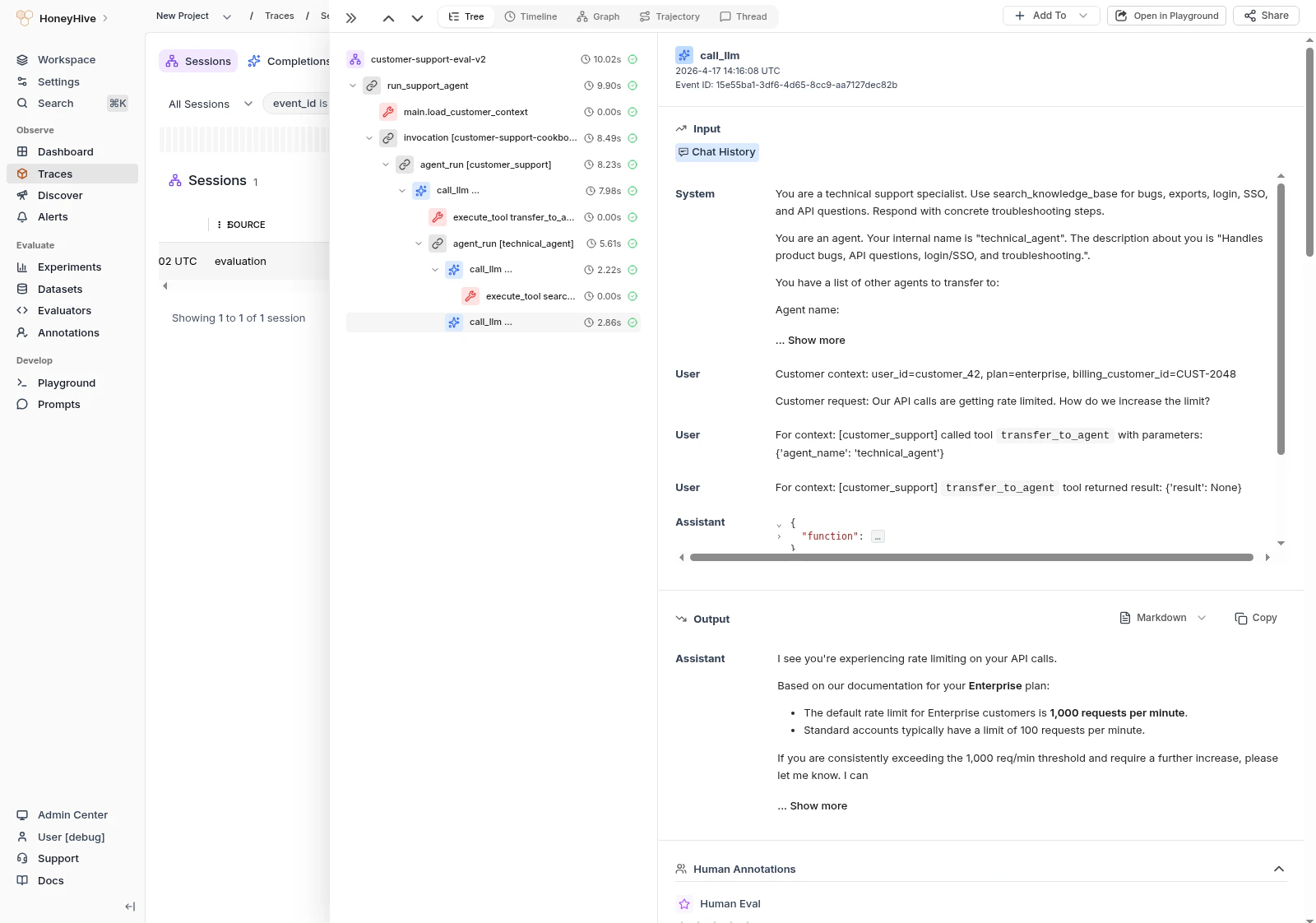
Trace detail view with Open in Playground and Share buttons
Annotate outputs
For manual review workflows, see Annotation Queues to set up human evaluation criteria and organize events for review.Curate datasets
You can add any session, completion, or span to a dataset directly from the UI.- In the Traces page, use filters to find the events you want
- Select one or more rows using the checkboxes
- Click + Add To → Add to Dataset
- Select an existing dataset or create a new one
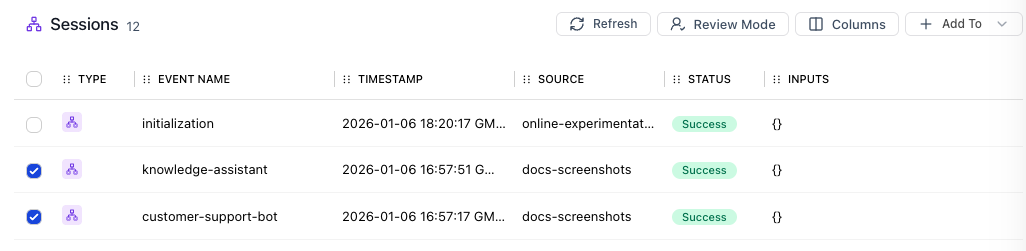
Adding sessions to a dataset
Share traces
Click the Share button in the top right of any trace to copy a shareable link. Anyone on your team with access to the project can view it.If you share a child event, the link takes viewers directly to that specific event within the trace.