

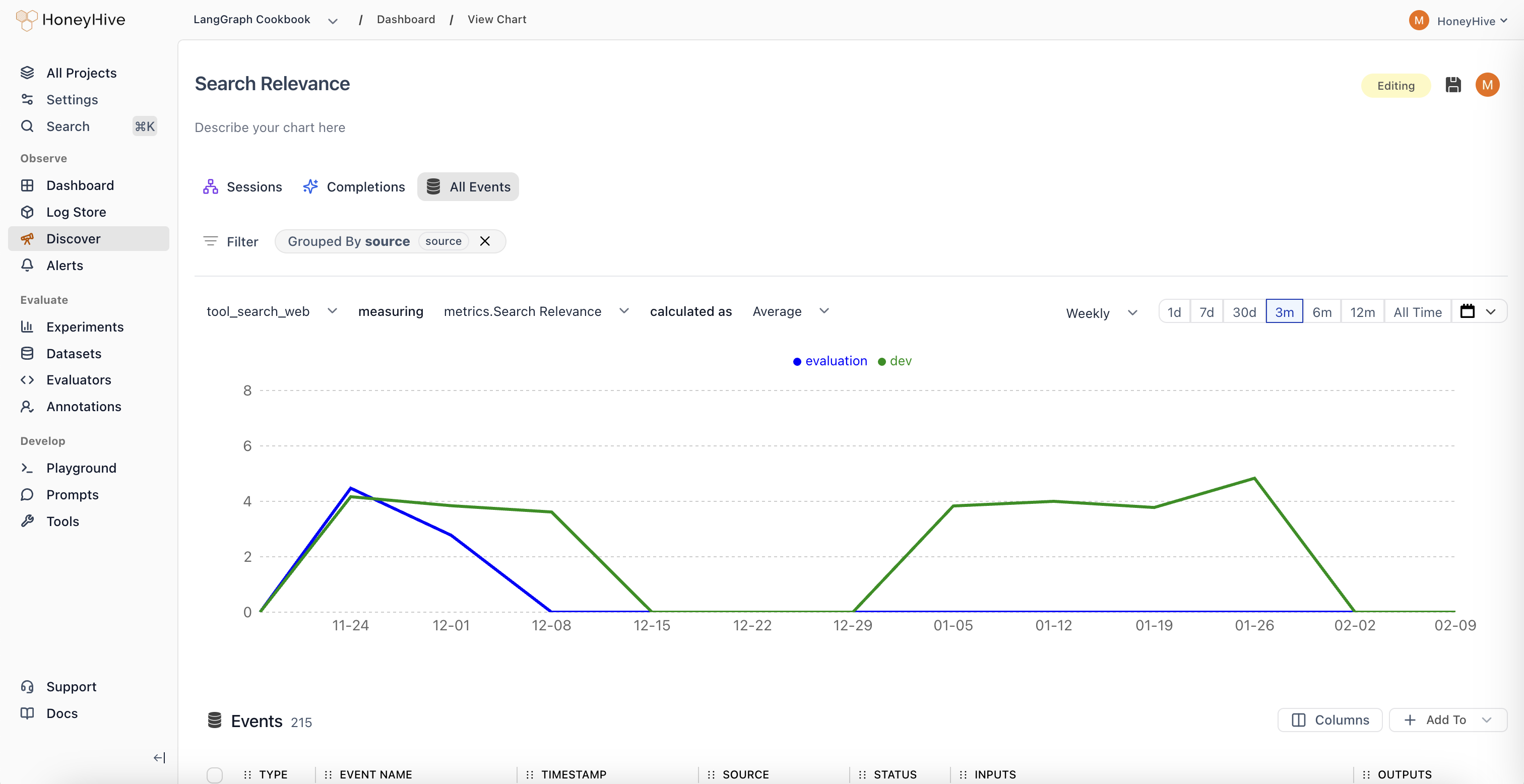
Quick Start: Building Your First Chart
Creating insightful visualizations in HoneyHive is straightforward.Access Discover
Click New Chart in your Dashboard, or navigate to the Discover tab from the sidebar.
Select Your Data Source
Choose from three data scopes:
| Scope | What it covers |
|---|---|
| Sessions | Full user interactions/traces (entire conversations) |
| Completions | Individual LLM calls |
| All Events | Any tracked step in your pipeline, including tool calls |
Configure Your Visualization
| Setting | Description |
|---|---|
| Event | Which event type to analyze (default: All Sessions/Completions/Events) |
| Metric | What to measure (e.g., Request Volume, Duration, Cost, or custom evaluators) |
| Aggregation | How to calculate (Sum, Average, Median, 99th Percentile, etc.) |
Understanding Your Data
To build effective charts, it helps to understand the data components available in HoneyHive.Metrics
Metrics are the numerical values you visualize in charts.Usage Metrics
Usage Metrics
| Metric | What it tells you |
|---|---|
| Request Volume | Queries over time. Spot usage spikes or drops. |
| Cost | Direct expenses. See if that new feature is breaking the bank. |
| Duration | System latency. Slow responses kill engagement. |
Evaluators
Evaluators
User Feedback
User Feedback
The voice of your users, quantified. Accepts
float or boolean inputs.| Example | Type | Question it answers |
|---|---|---|
| Usefulness Rating | float | On a scale of 1-5, how useful was this response? |
| Used in Report | boolean | Did the user actually use this in their report? |
Properties
Properties provide context for your metrics. All properties in the enrichment schema such asconfig, user properties, feedback, metrics, and metadata can be used to slice and dice your data.
Chart Types
Each chart type focuses on a different part of your LLM pipeline.- Completions
- Sessions
- Events
Focus: Individual LLM calls.Key Metrics:
cost, duration, tokens, errors, and any specified evaluators.Example use case
Example use case
Hypothesis: “Longer user messages cause more token waste.”Test: Chart
Average Unused Output Tokens grouped by binned_input_length.